
Running a WordPress multisite network can be powerful – but when it comes to email delivery, things can quickly get complicated.
If you’ve ever experienced emails not being sent, landing in spam, or simply disappearing without any trace… you’re not alone.
So in this post, we’re not just going to show you how to set up SMTP. We’ll walk you through why WordPress mail SMTP multisite gets tricky, and how you can fix it without overcomplicating your workflow using YaySMTP.
Why SMTP Matters in WordPress Staging Sites and Multisites?
By default, WordPress uses the PHP mail function to send emails. Unfortunately, this method is not reliable – especially in a multisite environment.
Common issues include:
- Emails are going to spam
- Contact form submissions are not being delivered
- WooCommerce order emails are missing
- No visibility into failed emails
In a multisite setup, these problems are even more challenging because:
- Multiple subsites send emails simultaneously
- Each site may require different configurations
- There’s no centralized control by default
Using SMTP allows your emails to be sent through trusted providers like Gmail, Outlook, or transactional services – dramatically improving deliverability and reliability.
That’s why using an SMTP service is essential.
Why Choose YaySMTP for Multisite?
What I like about YaySMTP is that it actually understands multisite. It’s not just “compatible”, it’s designed for it.
With YaySMTP, you can:
- Set up SMTP globally for all subsites
- Allow subsites to override settings if needed
- Force a consistent sender name and email
- Let each subsite access its own email logs
- Debug and test emails easily
Setting Up YaySMTP for Multisite (Step-by-Step)
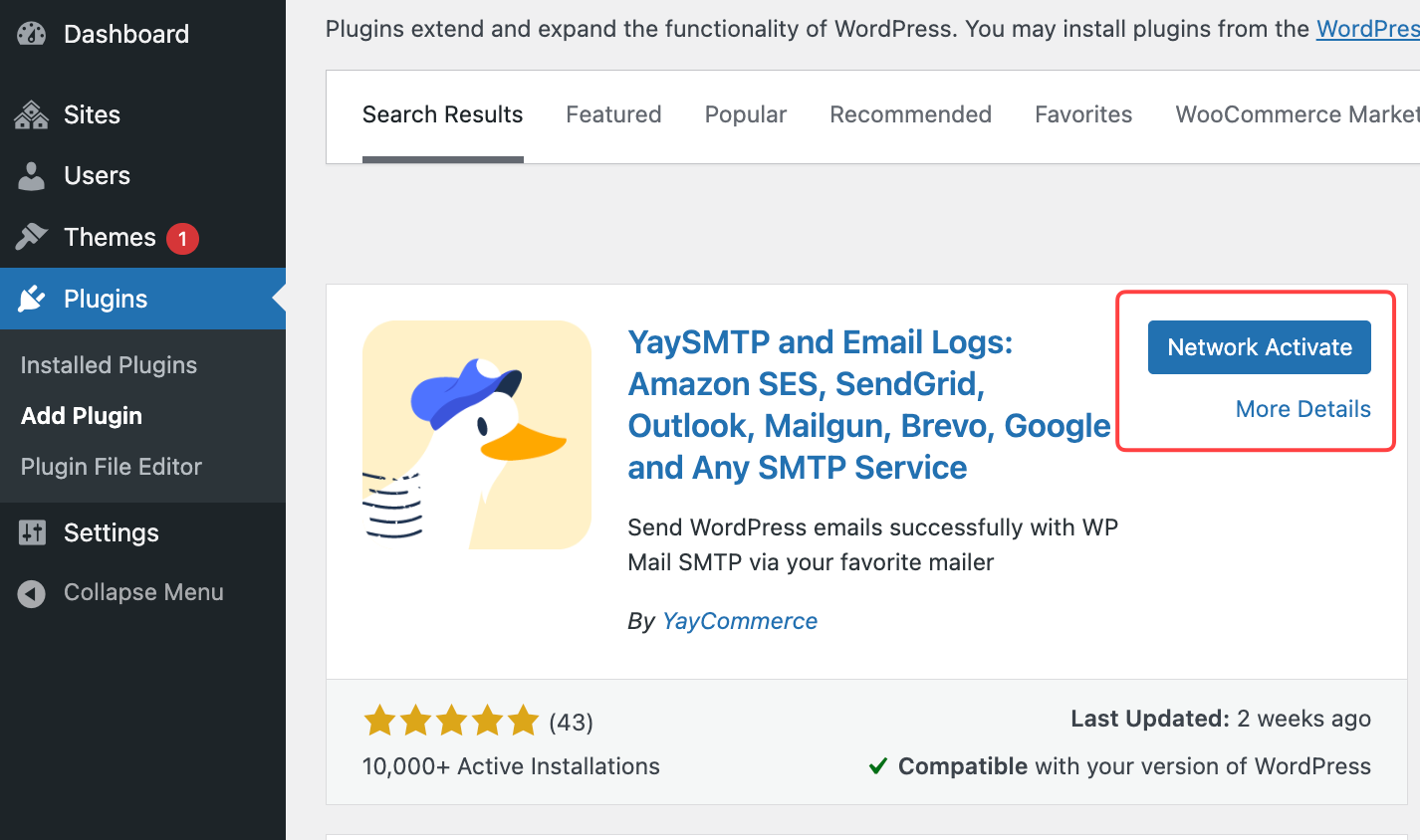
Step 1: Install and Network Activate YaySMTP
Go to your Network Admin Dashboard, navigate to Plugins then Add New. You can upload or search for YaySMTP. You have to make sure that you click on Network Activate.
Step 2: Access YaySMTP Settings
After activation: Go to Network Admin, then YaySMTP Settings.
This is where you’ll configure your global SMTP settings.
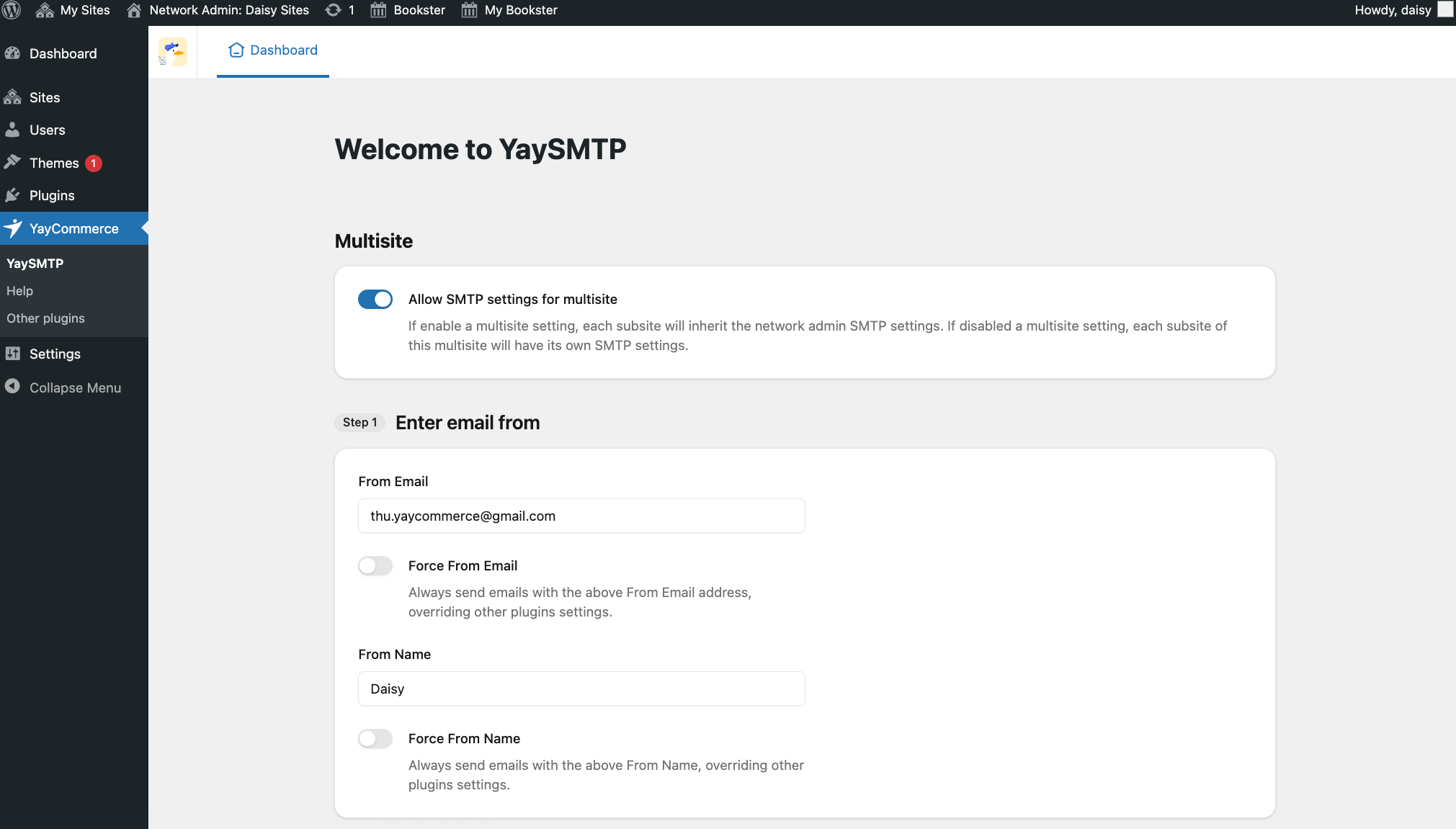
Once that’s done, YaySMTP will automatically fill in the necessary settings for you – which saves a lot of time.
From the Super Admin view, you’ll also see an option to force the From Name and From Email, which means all the emails from all your subsites will be sent under only one email and name.
When working in a WordPress Multisite SMTP environment, YaySMTP includes an important option that affects how test emails are sent.
When enabled:
- You can only send test emails from the Network Admin (main site)
- Subsites will not have permission to send test emails directly
This is designed to give network administrators full control over email testing and configuration.
Once disabled:
- Subsite admins can send test emails directly from their own dashboards
- Each site can verify its own SMTP setup
If your Multisite network uses centralized SMTP settings, keep this option enabled for better control.
If your network is more decentralized, turning it off provides more flexibility.
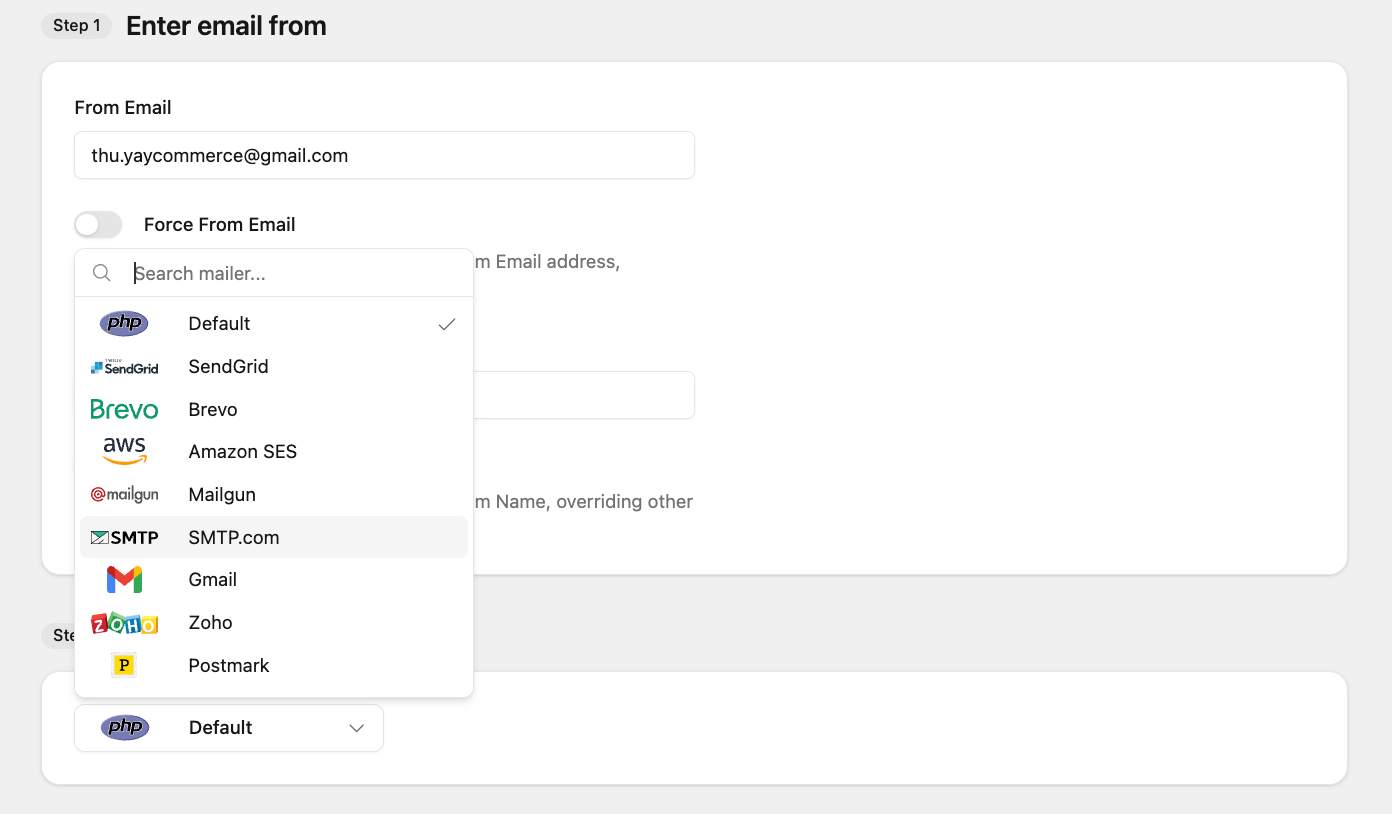
Step 3: Choose Your SMTP Provider
In here, select your preferred email provider. For example, YaySMTP provides some SMTP services: Gmail, SendGrid, Brevo, Amazon SES, Gmail, and much more.
Step 4: Configure SMTP Mailer
With YaySMTP, you can connect to any SMTP service – whether it uses API keys, app passwords, or traditional login details.
For services like SendGrid or Amazon SES, the “API key” is typically used as the SMTP password, rather than being entered into a separate API field.
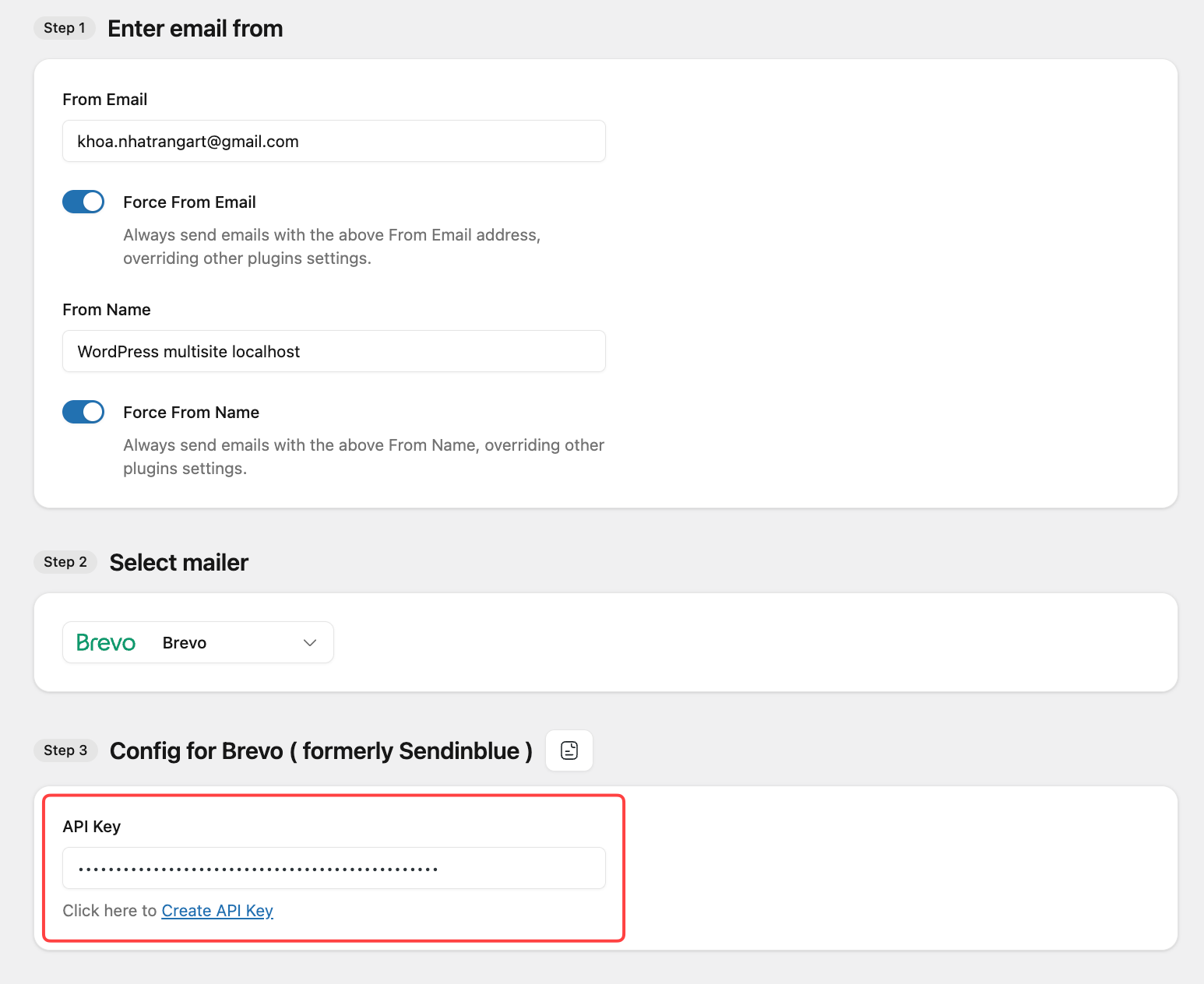
Once done, you can send the test emais. You have to confirm delivery and check spam folder
If it arrives successfully, you’re good to go!
Exploring YaySMTP in Multisite: Settings, Email Logs & Tools
Once you’ve set up YaySMTP for your WordPress Mail SMTP multisite, the next step is understanding how to navigate and make the most of its core tabs.
Settings Tab – Your SMTP Control Center
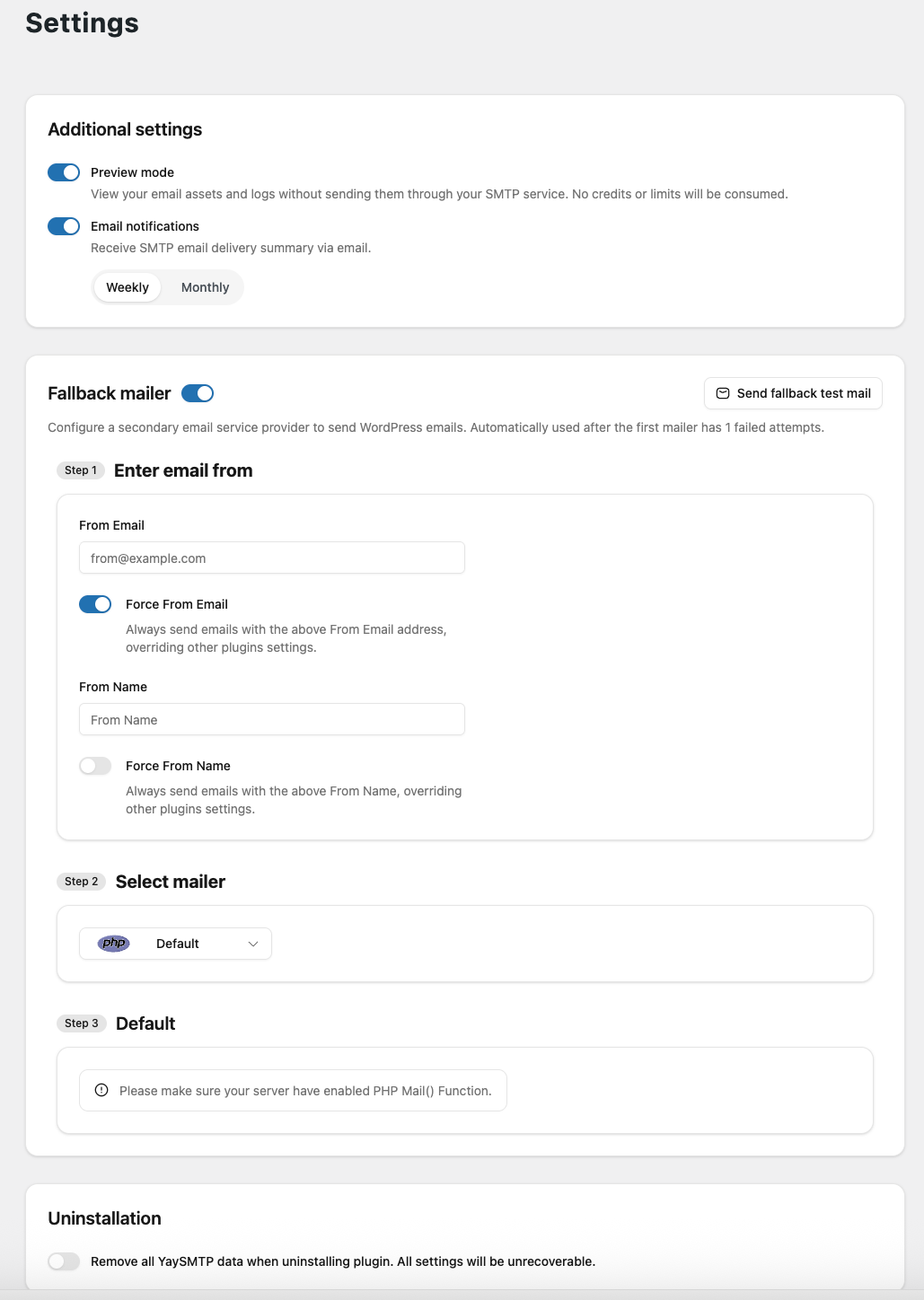
The Settings tab is where all your SMTP configurations live. In a Multisite environment, this tab becomes especially powerful because it allows you to control how emails are handled across your entire network.
What you can do here:
- Enable Preview mode: safely check how your emails look and review the logs without actually sending anything through your SMTP service. It’s perfect for testing and making sure everything is set up correctly, it won’t use any credits or affect your sending limits at all.
- Enable Email notifications: get a handy summary of your SMTP email deliveries sent straight to your inbox. This helps you easily keep track of how your emails are performing without needing to log in and check manually.
- Fallback Mailer: Use a backup email service for sending your WordPress emails. If your primary mailer fails even once, the system will automatically switch to the secondary provider to help ensure your emails are still delivered smoothly.
- Uninstallation: completely remove all YaySMTP data when uninstalling the plugin, including its settings and configurations. This is useful if you want a clean reset or no leftover data on your site.
Email Logs – Track Every Email with Confidence
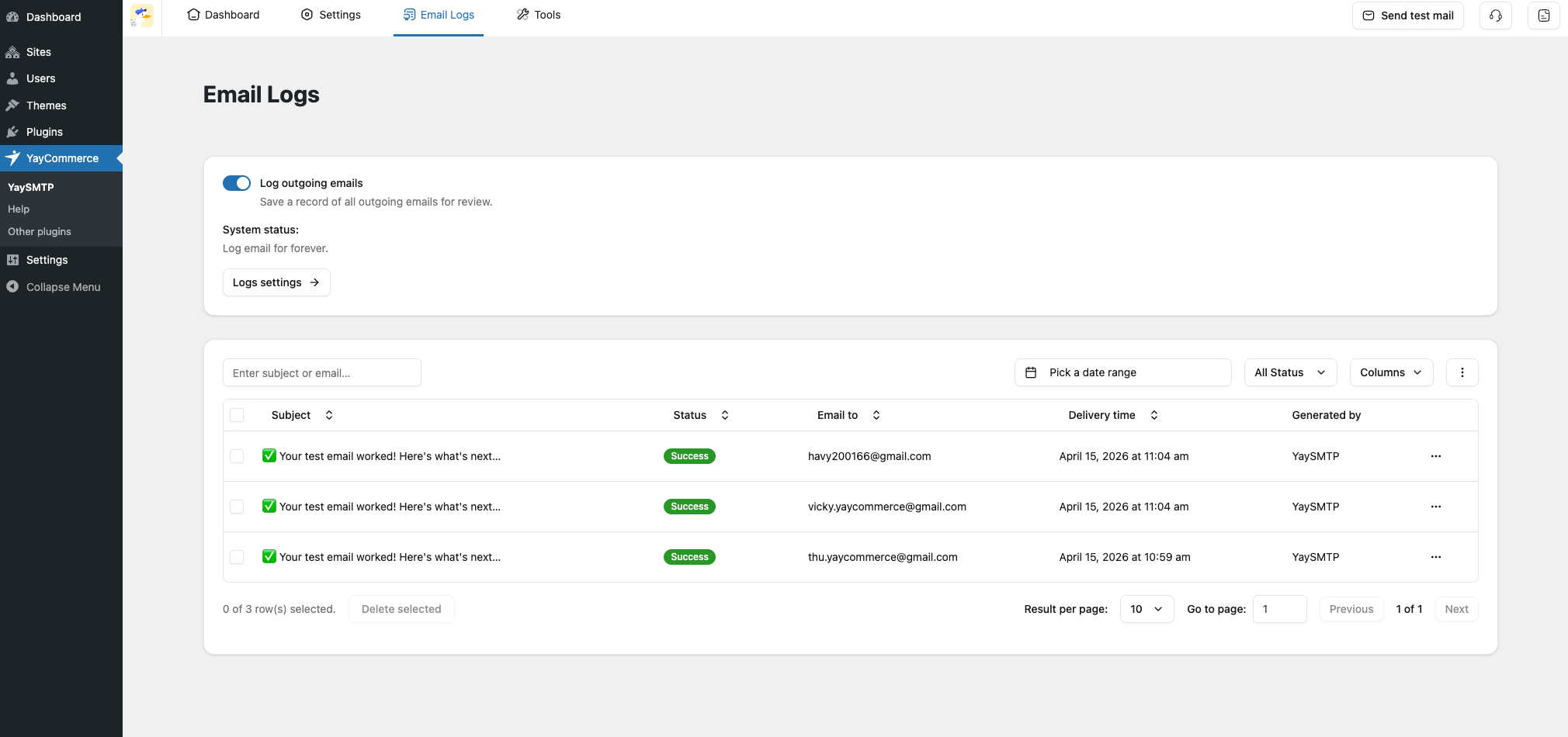
The Email Logs tab is your go-to place for monitoring and troubleshooting email activity across your network. Instead of guessing whether emails are being sent successfully, you get full visibility.
What you can track:
- Email subject, recipient, and sender
- Delivery status (sent, failed, pending)
- Timestamp of each email
- Generated by
This is especially useful for agencies or store owners who need to maintain a reliable user experience across all subsites.
Tools – Import & Export with Ease
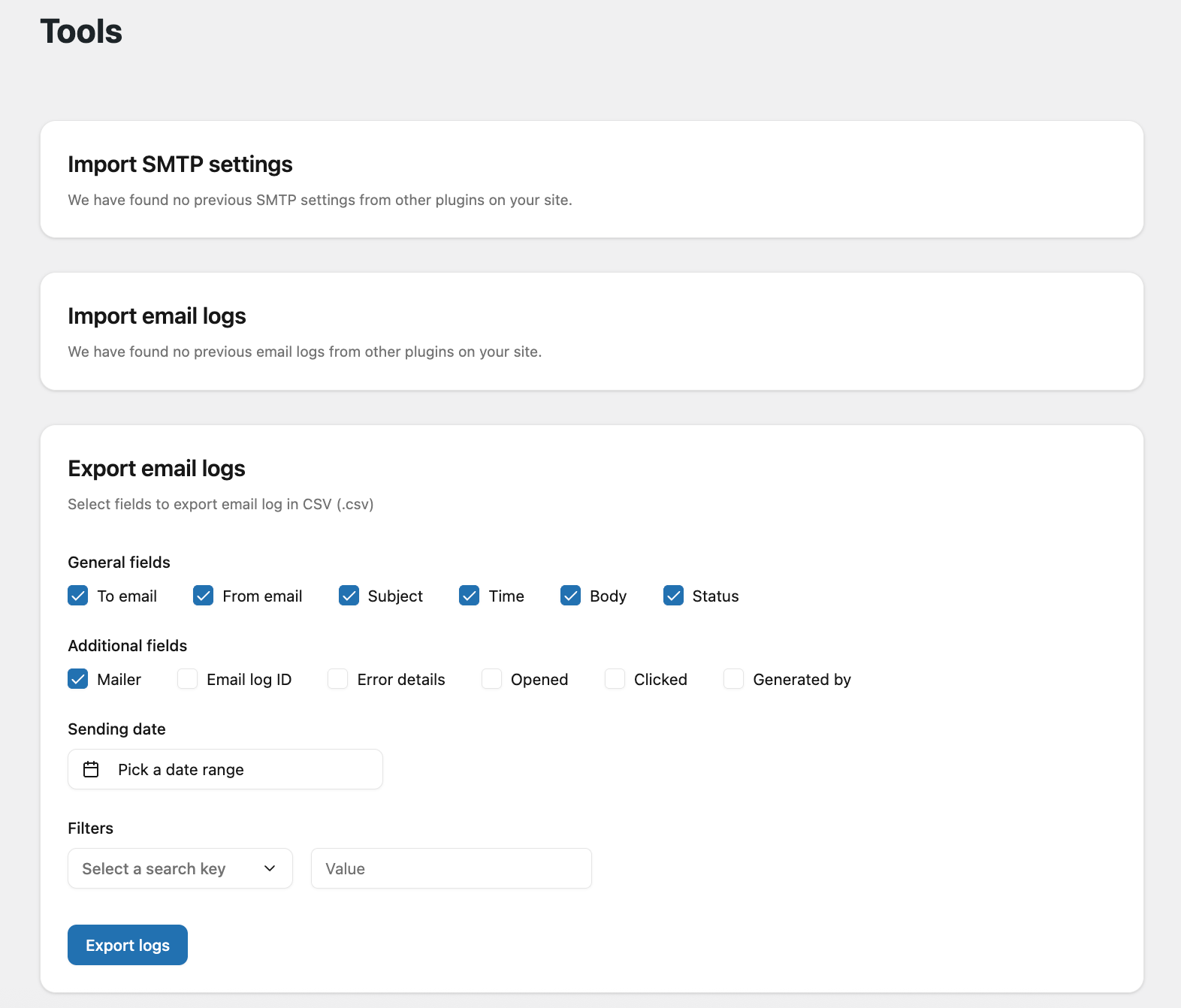
The Tools tab in YaySMTP is designed to help you manage, migrate, and back up your email configurations and logs – which is especially valuable in a WordPress Multisite environment.
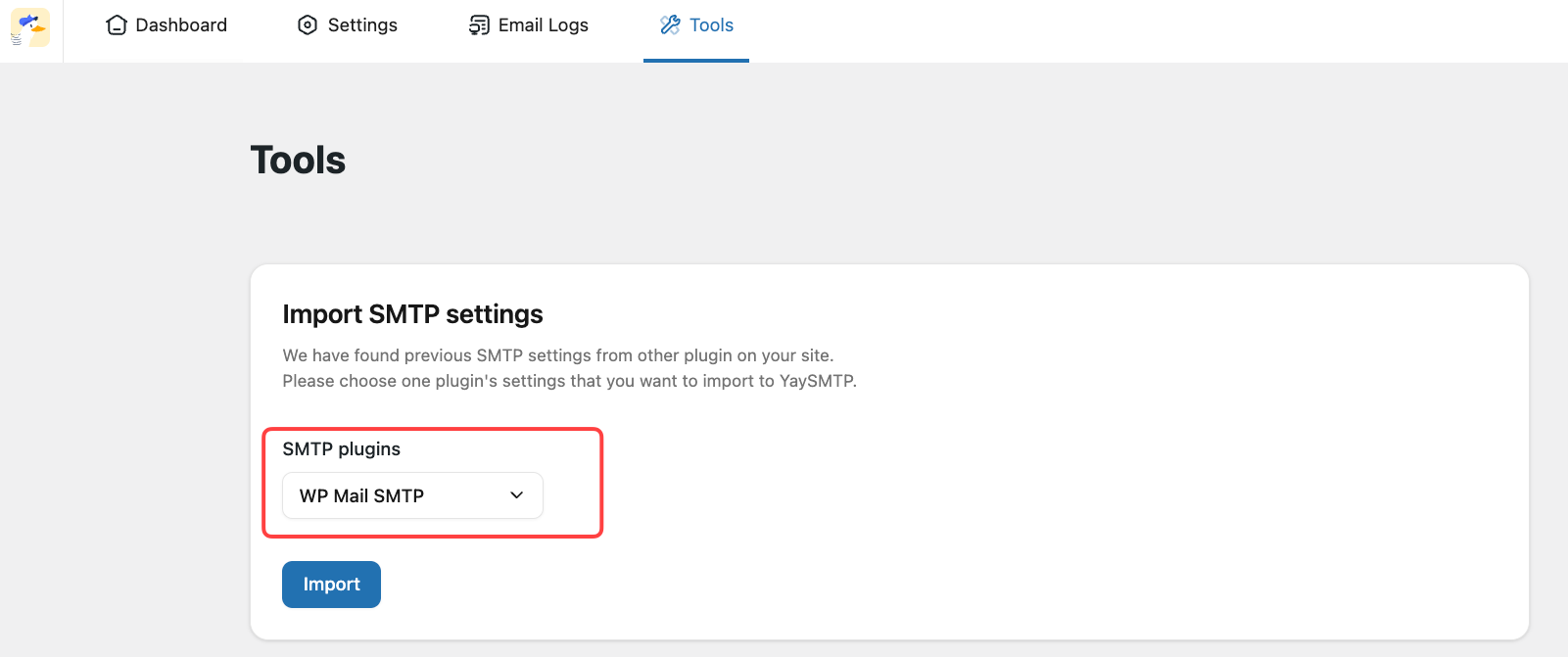
Import SMTP Settings
This feature allows you to quickly import SMTP configurations from another SMTP plugins:
- Save time when setting up multiple environments
- Easily replicate configurations across different Multisite networks
- Avoid manual errors when re-entering credentials
Import Email Logs
Need to migrate or restore your email history? The Import Email Logs option makes it simple.
Use cases:
- Restore logs after a site migration
- Consolidate logs from different environments
- Maintain a record of past email activity
This is particularly helpful if you rely on logs for auditing or troubleshooting.
Export Email Logs
The Export Email Logs feature lets you download your email data for external use.
What you can do with exports:
- Analyze email performance outside WordPress
- Share reports with clients or team members
- Keep backups for compliance or record-keeping
In a Multisite setup, this is extremely useful for agencies managing multiple clients, as you can provide clear email delivery reports when needed.
Final Thoughts
Managing email delivery in a WordPress Multisite network doesn’t have to be complicated – but it does require the right approach.
Relying on the default WordPress mail function often leads to missed emails, poor deliverability, and unnecessary frustration – especially when you’re handling multiple subsites at once.
With YaySMTP, you can simplify the entire process.
From centralized SMTP configuration to flexible per-site overrides, along with built-in email logs and import/export tools, YaySMTP gives you everything you need to take full control of your network’s email system – without added complexity.
Whether you’re running a network of blogs, managing client websites, or scaling multiple WooCommerce stores, having a reliable SMTP setup in place is no longer optional – it’s essential.
If you’re looking for an easy, scalable way to handle emails in Multisite, YaySMTP is a solution built to grow with you.

