When you think about a notification bar on a website, what comes to mind?
Probably something like:
Sale Ends Soon! Get 30% Off Today!
There’s nothing wrong with using a notification bar for promotions. In fact, it can be an effective way to put a generous offer directly in front of visitors without interrupting their browsing experience.
But if every notification bar on your WordPress website says “Sale Ends Soon,” you’re leaving a lot of potential on the table.
A notification bar can do much more than create urgency. You can use it to announce free shipping, guide visitors to important content, highlight new products, collect leads, communicate store updates, promote limited-time events, or help visitors discover something they might otherwise miss.
In other words, how you use a notification bar matters more than simply having one.
In this guide, we’ll explore five smart ways to use a notification bar beyond traditional sales promotions, along with practical examples you can apply to a WordPress website.
We’ll also look at how a WordPress notification bar plugin such as Notibar can help you create and manage these messages without requiring complicated coding.
What Is a Notification Bar?
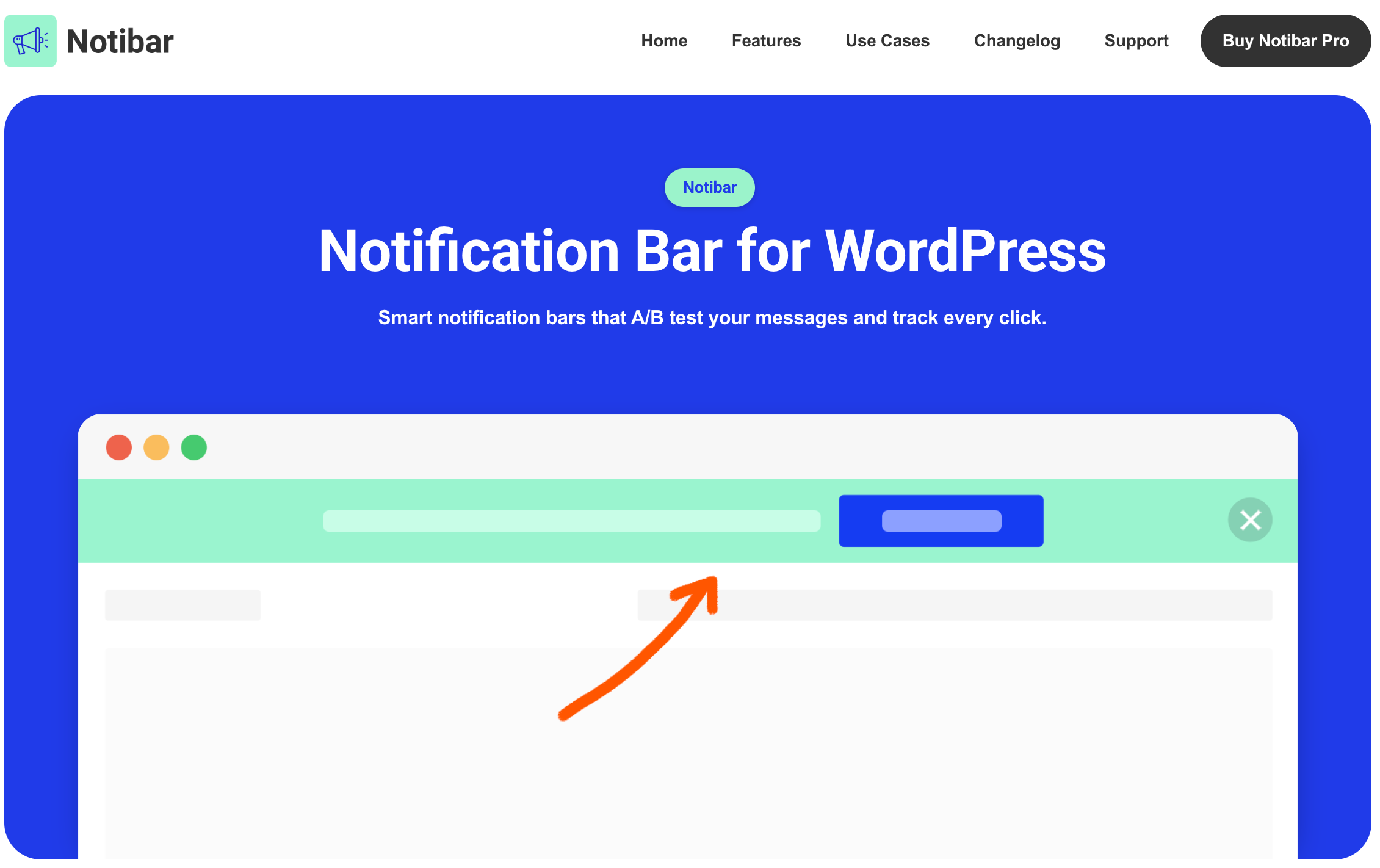
A notification bar (also called an announcement bar or sticky header bar) is a thin strip of text, usually pinned to the top or bottom of a website, that shows a short message and often a button. It stays visible while visitors browse, so the message reaches people no matter which page they land on.
Unlike popups, notification bars generally remain part of the website layout or sit unobtrusively at the edge of the screen.
A typical notification bar includes:
- A short message (one sentence is ideal)
- A call-to-action button, such as “Shop now” or “Sign up”
- A close button, so visitors can dismiss it
- Colors and fonts that match your brand
So why does the classic “Sale ends soon” message stop working? A few reasons:
- It’s generic. The same message is shown to first-time visitors, loyal customers, and people who have just made a purchase. Most of them don’t care.
- It runs for too long. A sale that’s “ending soon” for three weeks isn’t urgent, and visitors can tell.
- It’s the only thing the bar ever says. If the bar always talks about discounts, visitors stop reading it.
- It ignores context. A shopper deciding on a product page needs different information than a reader on your blog.
Why You Should Use Notification Bar Messages Beyond Sales
A notification bar works particularly well because it occupies a highly visible position and requires no clicks to continue.
Here’s why it’s worth the effort:
- It reaches everyone. A bar shows up on every page you choose, including pages where there’s no room for a banner or a form.
- It doesn’t block the content. Visitors can keep reading or shopping, or close the bar if they want to.
- It’s flexible. You can change the message in minutes without editing your theme or building a new page.
- It supports different goals. One week it can build your email list. Next week, it can warn customers about a shipping delay.
- It can be scheduled. You don’t have to remember to switch messages on and off by hand.
- It fits Google’s guidance. Google says intrusive interstitials can frustrate people and erode trust, and recommends banners that take up only a small fraction of the screen instead.
Instead of adding another popup to your website, you can use a notification bar as a lightweight communication channel between your business and your visitors.
And that’s where the strategy becomes more interesting.
5 Smart Ways to Use a Notification Bar for Better Conversions
| Method | Example Message | Best for | Where to Show It |
| Free shipping nudge | You’re only $15 away from free shipping. Continue shopping… | Larger carts | Cart and shop pages |
| New product or feature | Meet our new fall collection. Explore now… | Discovery of new items | Homepage and category pages |
| Guide to important content | Learn how to build your first online store. Start here… | Content and guide traffic | Blog posts and homepage |
| Delivery cut-offs and updates | Orders placed by 2 PM shipped today! | Time-sensitive notices | Product, cart and checkout pages |
| Lead collection | Get our free WooCommerce checklist. Download now… | Email list growth | Homepage and blog posts |
Let’s take a closer look at each option below and see how it helps.
1. Nudge Shoppers Toward Free Shipping
Let’s start with one of the simplest alternatives to a sales promotion: free shipping messaging.
If your WooCommerce store offers free shipping after customers reach a certain order value, a notification bar can make that offer visible before customers reach checkout.
For example: You’re only $15 away from free shipping! → Continue shopping
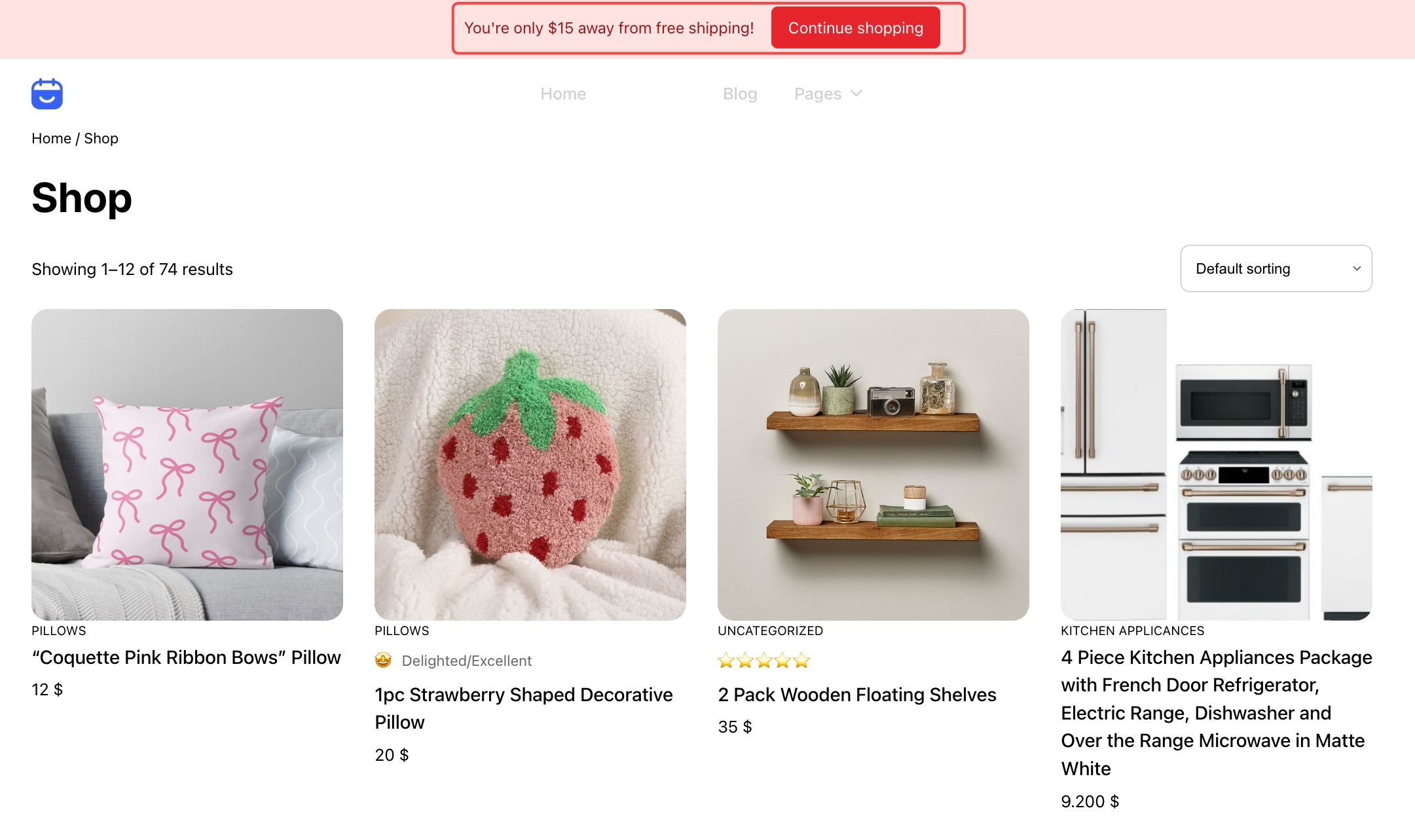
Shipping costs are often an important part of the purchasing decision. A customer might be interested in a product but hesitate when they discover the shipping fee at checkout.
Making your shipping policy visible earlier can reduce that uncertainty.
More importantly, a free-shipping threshold can encourage customers to add another product to their cart.
Notibar shows the message you write, so it displays a fixed threshold rather than a live “you’re $12 away” counter. Pick a threshold that matches your real shipping rule, and update the bar whenever the rule changes.
2. Highlight New Products or Features
Your notification bar doesn’t always need to promote something that is discounted.
Sometimes, the goal is simply to make sure visitors know something new is available.
For an online store, this could be: Meet our new Fall Collection → Explore now

This is particularly useful because new products, features, and content can easily get buried.
Your homepage may already contain multiple sections. Your navigation menu may contain dozens of links. Your blog may publish several articles every month.
Imagine launching a new product. You could publish a blog post, send an email newsletter, post on social media, and add the product to your navigation menu.
But visitors who discover your website through Google or an old blog post might never see those announcements. A site-wide notification bar can bridge that gap.
A good notification bar should reduce the amount of thinking required from the visitor.
3. Guide Visitors to Important Content
Here’s an underrated use case for a notification bar: content discovery.
If you run a WordPress blog, chances are you have more useful content than most visitors will ever see.
For example: 🎓Learn how to build your first online store → Start here
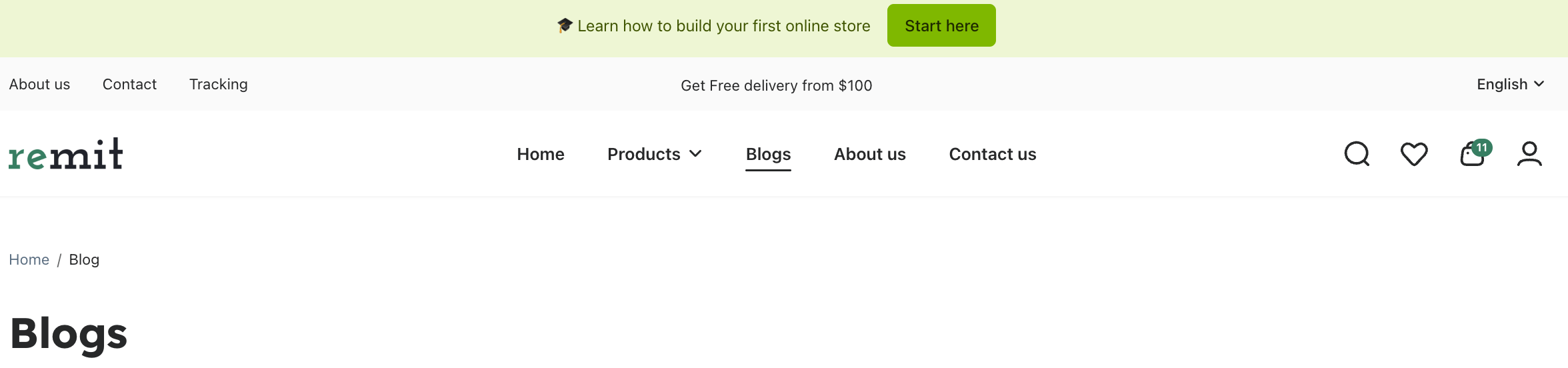
The problem is helping visitors find the right content at the right time. A notification bar can act as a simple internal promotion channel.
Someone may land on a highly specific article from Google without knowing anything about the rest of your website. A notification bar can provide a next step.
4. Share Delivery Cut-Offs and Service Updates
Not every important message on your website is related to marketing. Sometimes visitors simply need information.
For example: Scheduled maintenance: Our checkout will be unavailable from 2–3 AM UTC.

Imagine a customer tries to place an order and experiences a delay. If you already communicated the situation through a visible notification bar, they are much more likely to understand what is happening.
The same principle applies to website maintenance, holiday schedules, product availability, shipping deadlines, service interruptions, and other operational updates.
This is where the role of a notification bar becomes much bigger than “promotion.” It can function as a small announcement system for your website. Instead of forcing every visitor to search your website for important information, you can put the message directly where they are likely to see it.
5. Collect Leads
A notification bar can also become a small lead-generation tool.
Instead of immediately asking visitors to buy something, you can offer something useful in exchange for an email address.
For example: Get our free WooCommerce checklist – Download now

This approach can work particularly well for blogs and content-driven websites.
A visitor who isn’t ready to purchase your product today might still be interested in your educational content.
Once they join your email list, you have another channel for building the relationship.
How to Use Notification Bar in WordPress with Notibar (Step-by-Step)
Now, let’s move on to the tutorial. We’ll use Notibar to create a bar from scratch. The whole process takes about five minutes. Once you know the steps, you can repeat them for any of the five ideas above.
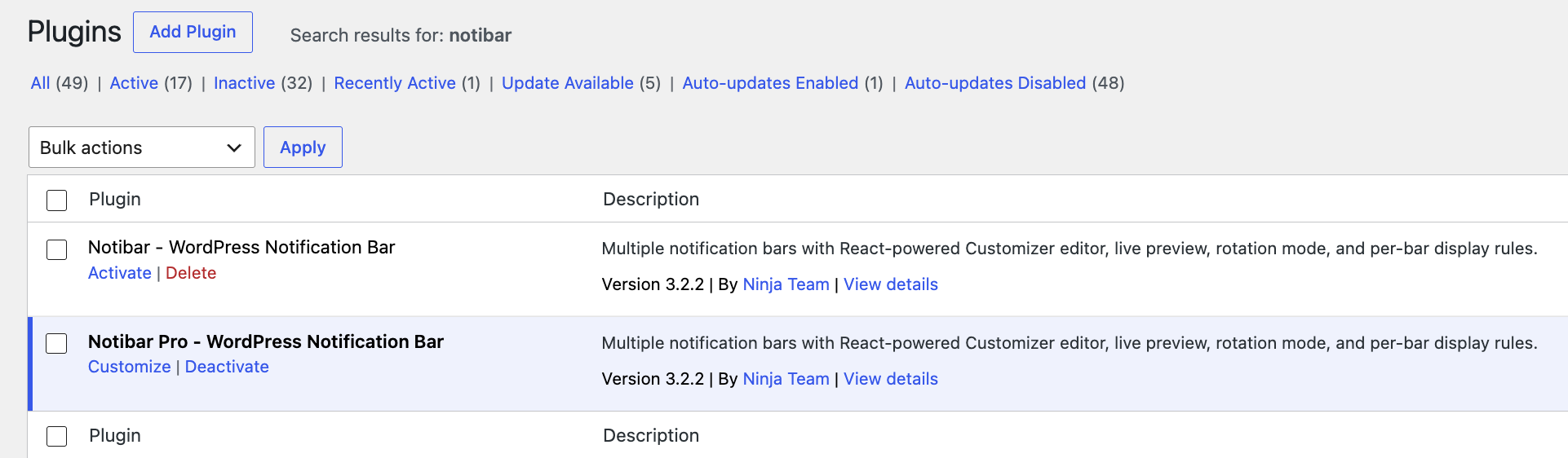
Step 1: Install and Activate Notibar
In your WordPress dashboard, go to Plugins > Add New, search for Notibar NinjaTeam, then click Install Now and Activate.
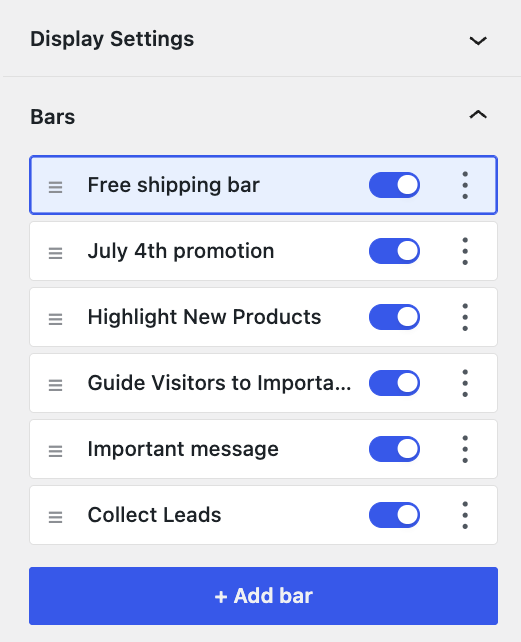
Step 2: Create a New Bar
Open the Notibar settings from your dashboard and add a new bar. Give it an internal name, such as “Free shipping bar”. Visitors won’t see this name. It’s there to help you keep track when you have several bars.
Step 3: Write Your Message and Add a Button
In the Content settings, type your message in the text area. You can use plain text or add simple HTML such as links, bold text, or line breaks. Then turn on the call-to-action button, enter the button text and URL, and choose whether the link opens in a new tab.
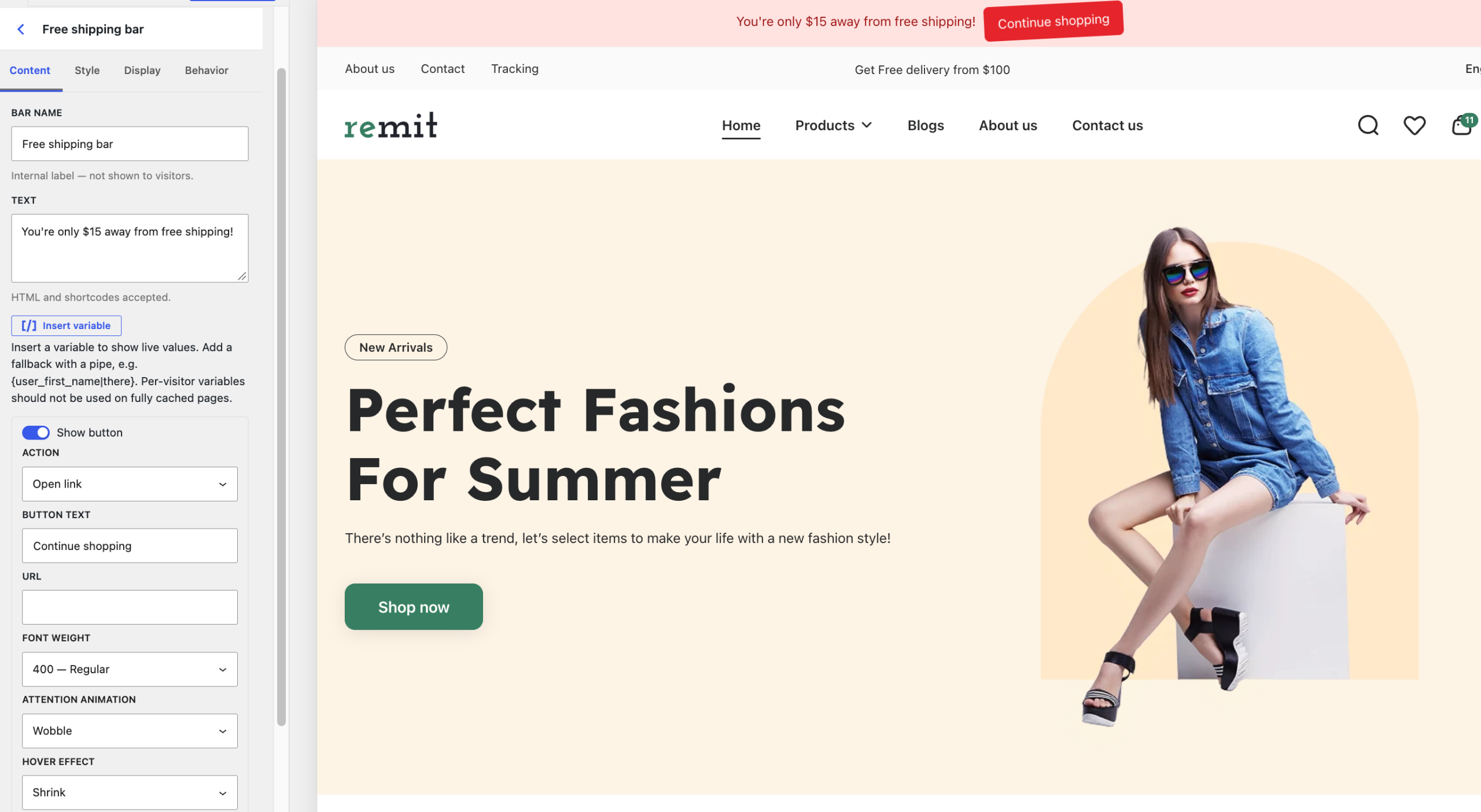
If you want a different message on phones, enable Mobile Content and write a shorter version.
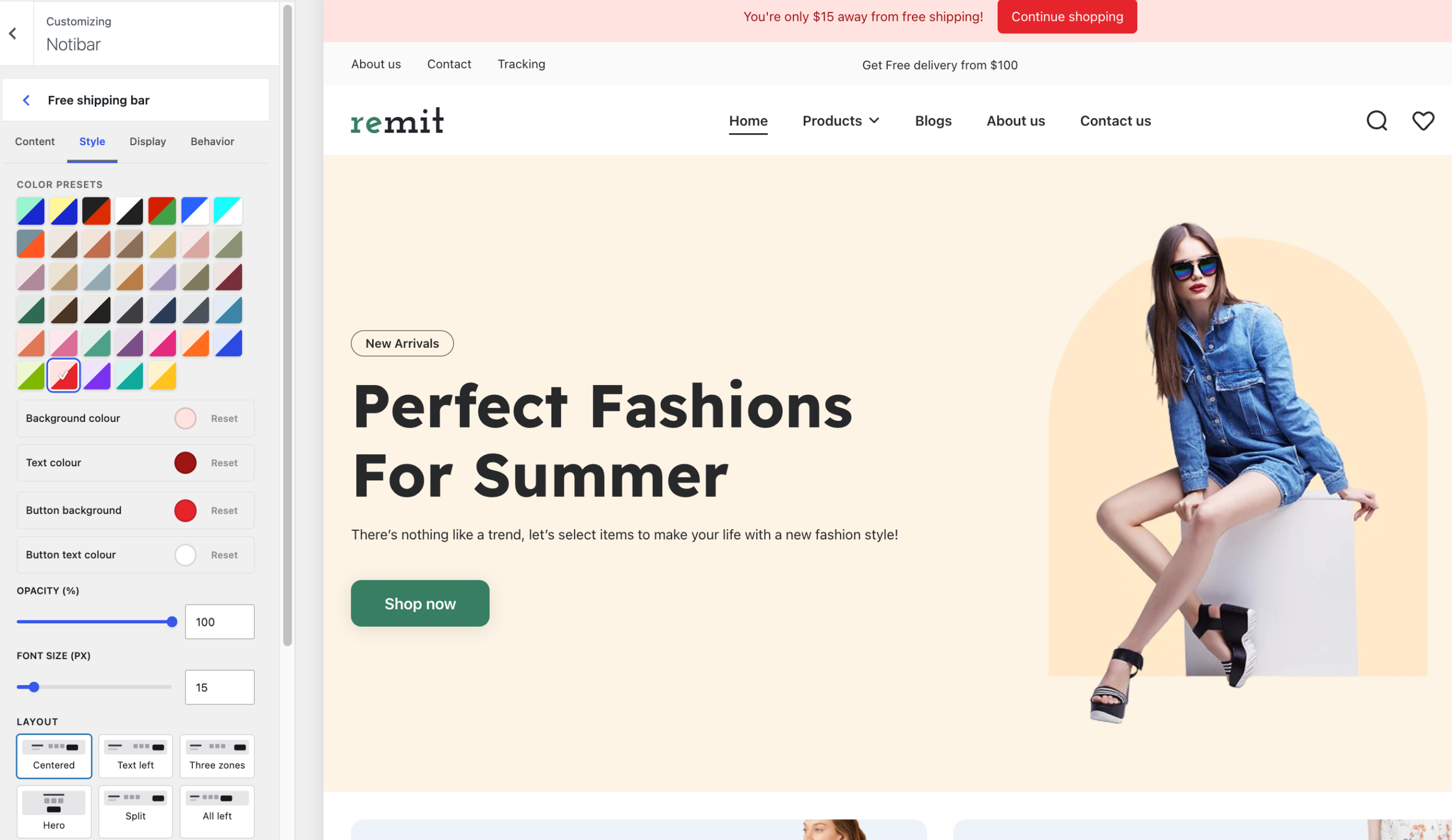
Step 4: Style Your Bar
Open the design settings. Pick one of the preset color palettes or set your own background, text, and button colors. Adjust the font size, alignment, and content width. If you’re on Pro, choose between top or bottom placement. Keep an eye on the contrast warning so your text stays easy to read.
Step 5: Choose Where, When, and for Whom to Show It
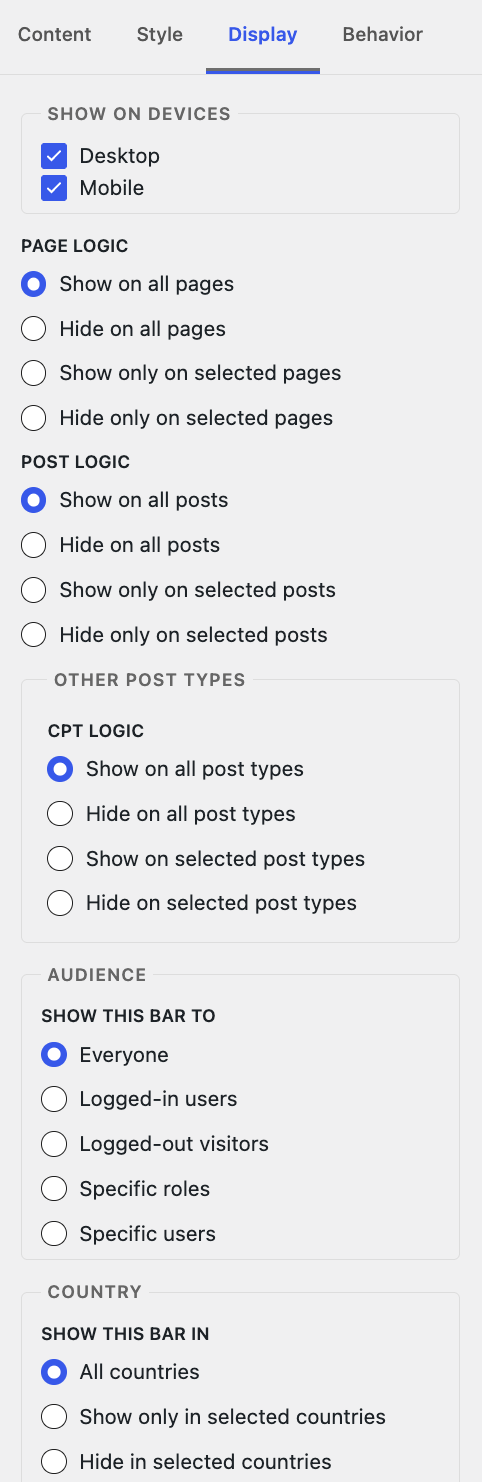
This is where a notification bar gets smart. In the Display settings, choose:
- Device: Desktop, mobile, or both.
- Pages: All pages, hide on all pages, only on selected pages, or hide on selected pages.
- Posts: The same options for posts. On Pro, you can also target custom post types such as WooCommerce products.
- Audience (Pro): Everyone, only logged-in users, only logged-out visitors, or specific roles.
Then open the scheduling settings and choose a start and end date, a daily time window, and the days of the week. Finally, set how the visitor can dismiss the bar (close button, collapse arrow, or none) and after how many days it should reappear.
That’s it! This is how you use a notification bar in WordPress with Notibar. For more specific setups, the docs include tutorials on
Common Mistakes to Avoid While Creating WordPress Notification Bars
A notification bar only works when the message is useful, and the visitor can ignore it. Most bars fail because they stay up too long, appear on the wrong pages, or ask for too much. These six mistakes turn a helpful strip into something people close on sight.
- Leaving a sales message up after the sale ends. “Sale ends soon” loses trust once the date passes. Set a start and end so the bar turns off on its own. Notibar includes scheduling in the free version, so you do not have to remember to disable it.
- Showing the same bar on every page. A free-shipping note belongs on the cart and shop. A content guide belongs on blog posts. A sitewide bar for a one-page offer gets ignored. Use page rules so each message appears only where it helps.
- Writing text that does not fit on a phone. A long sentence wraps or gets cut off, and the button becomes hard to tap. Keep the line short. Write a separate, shorter version for mobile so the bar does not cover the menu or the add-to-cart button.
- Making the bar impossible to close. A visitor who cannot dismiss the bar will leave or block it with an extension. Give them a clear close option and decide how long it stays hidden. You can bring it back later if the message is still relevant.
- Using a vague button or no button at all. “Click here” does not tell anyone what happens next. Match the button to the offer: “Continue shopping,” “Explore the collection,” or “Download the checklist.” One clear action is better than three.
- Running the bar without checking mobile and desktop. A bar that looks fine on a laptop can cover the checkout button on a phone. Preview both sizes before you publish. Adjust the height, the text length, and the placement so the bar stays out of the way of the main action on the page.
Frequently Asked Questions
Now, let’s take a look at some frequently asked questions and answers on this topic.
Can a notification bar help with free shipping without saying “sale ends soon”?
Yes. A short line like “You’re only $15 away from free shipping. Continue shopping” works because it is specific to the cart, not a generic countdown. Show it only on the cart and shop pages so it does not follow the visitor everywhere. Notibar lets you set the message, the button, and the pages in a few minutes. The free version is enough for this. You can schedule it for the days the threshold is active and let visitors close the bar.
How do I highlight a new product without a full sale banner?
Keep the bar short and point the button at the new collection or product page. “Meet our new Fall Collection. Explore now” is clearer than a discount code. You can limit the bar to the homepage and category pages so it does not appear on the product itself. Notibar supports different content for mobile, so the text stays readable on a phone. Set a start and end date so the bar disappears once the collection is no longer new.
Is a notification bar useful for guiding visitors to important content?
It is one of the least used and most practical options. A line such as “Learn how to build your first online store. Start here” can sit above the blog or homepage and send people to a guide they would otherwise miss. The bar stays thin and does not interrupt reading the way a popup does. In Notibar, you choose the pages to include or exclude, so the bar only appears where it helps.
Can I use a notification bar for delivery cut-offs and service updates?
Yes. These messages are time-sensitive and need to be visible without blocking the rest of the page. “Orders placed by 2 PM ship today” or a short maintenance note work well. Schedule the bar to start and end automatically so it does not stay up after the cut-off. Notibar handles the start and end date and time, and you can set it to reappear after a visitor closes it if the update is still relevant.
How can a notification bar collect leads without a popup?
Offer something useful and keep the ask short. “Get our free WooCommerce checklist. Download now” with a button to a landing page or a form is enough. The visitor stays on the current page until they choose to click. You can show the bar only on blog posts or the homepage. Notibar lets you add the button and control which pages display the bar. Pro adds click tracking so you can see which message gets more responses.
Does a notification bar hurt SEO or page speed?
A thin bar that loads with the page and does not force a layout shift is fine for most sites. Google’s guidelines care more about intrusive interstitials than a dismissible top bar. Notibar is built to work inside the WordPress Customizer and stays lightweight. You still need to write useful text and let visitors close the bar. A bar that never goes away or covers the main content is the real problem.
Can I run more than one notification bar at the same time?
Yes. Many stores run one bar for free shipping on cart pages and another for a new product on the homepage. Each bar can have its own message, style, schedule, and page rules. Notibar supports multiple bars in the free version. You can reorder them and duplicate one when you want a similar setup with different text. Pro adds rotation so you can cycle a few messages on the same page.
How do I stop visitors from seeing the same bar on every page?
Use page rules. Show the free-shipping bar only on the cart and shop. Show the content guide only on blog posts. Hide the bar on checkout if it distracts from payment. Notibar lets you include or exclude specific pages and posts for each bar. On mobile, you can also use shorter text so the bar does not cover buttons. A visitor who closes the bar should not see it again for a set time unless you choose to show it again.
What is the difference between a notification bar and a popup?
A notification bar stays in a thin strip at the top or bottom and does not cover the main content. A popup usually appears in the middle of the page and prompts the visitor to take action before they can continue. Bars work better for short, ongoing messages such as shipping thresholds or delivery cut-offs. Popups are better for longer forms. Notibar is built for the bar. You write the message, add one button, choose the pages, and set a schedule. Visitors can close it and keep reading.
How long should a notification bar stay on the site?
As long as the message is true and useful. A free-shipping threshold can run for weeks. A maintenance notice should end when the work is finished. A new-product bar should come down once the collection is no longer new. Schedule the start and end so you do not have to remember to turn it off. Notibar includes start and end dates and times in the free version. You can also set the bar to reappear after a visitor dismisses it if the message is still relevant. Test the text and the pages. A bar that is ignored is better than one that stays up with the wrong offer.
Final Thoughts
A notification bar is one of the simplest, most flexible tools on your WordPress site, and “Sale ends soon” is only the beginning. You can use it to guide shoppers toward free shipping, grow your email list without a popup, share delivery and service updates, promote what’s new, and create small recurring moments that bring visitors back.
The secret is relevance. Pick one goal, write one short message, show it to the right people at the right time, and then test and refresh it. With a plugin like Notibar, you can do all of that in minutes and without touching code.
Start small. Create one bar for one of the ideas above, schedule it, and see how your visitors respond. Then add the next one.
We hope you found this article helpful. If you want more WordPress tips, check out the NinjaTeam blog and follow us on our social channels.
Ready to make your header work harder? Get Notibar and start turning your notification bar into a smart marketing tool.
Do you know any other ways to use WordPress or WooCommerce notification bars for better conversions?
Let us know in the comments.