Are you looking for a complete comparison of WhatsApp vs live chat widget? In this post, we will show you which method is the best for turning visitors into customers.
Shoppers want a fast reply. A WhatsApp widget and a live chat widget both start from a button on your site, but the chat does not stay in the same place. WhatsApp vs live chat is a channel choice.
WhatsApp click-to-chat opens the visitor’s WhatsApp app and continues the conversation in WhatsApp Business or via the WhatsApp Business API. A live chat widget keeps the message in an on-page chat window, with a chatbot or a human agent.
The right pick depends on the use case and which channel fits the visit.
First, let’s see what a WhatsApp chat widget is and when you should use it.
WhatsApp Chat Widget: What Is It
A WhatsApp chat widget is a website widget that starts a real WhatsApp conversation .
The visitor clicks a floating button or a WhatsApp button, and WhatsApp click-to-chat opens the app or WhatsApp Web in the browser, with your WhatsApp number and a pre-filled message already in the thread.
The chat does not stay in an on-site window. It continues in WhatsApp Business after the visitor closes the tab. That is the split between WhatsApp and live chat. Live chat widgets keep the chat session on the page, with a chatbot or a live agent in a dashboard.
A WhatsApp widget sends the message via WhatsApp. It is not the WhatsApp Business API. It is a click-to-chat button for product questions, checkout help, and support. WP WhatsApp adds that button on WordPress.
The free version, WP Chat App, includes the floating button, a greeting, a pre-filled message, and an Order on WhatsApp button on WooCommerce products. Pro adds working hours, avatars, and click tracking.
Live Chat Widget: What Is It
A live chat widget is an on-site chat window. A chat bubble or floating button opens on your page, and the visitor types in the browser. The chat session stays on the site. It does not jump to another app.
A chatbot can answer first. A live agent can take over from a dashboard. Some widgets also connect to Facebook Messenger or a shared inbox, so the team replies from one place. That is the other side of WhatsApp vs live chat.
Live chat widgets are designed to handle questions while the visitor is still on the page, such as shipping, sizing, or checkout issues. When the visitor closes the tab, the thread usually stays in the widget history rather than in an app they already open every day.
Most of these tools are SaaS products with agent seats. A traditional live chat widget can feel faster during a visit. It is weaker once the shopper leaves because the next reply depends on them returning to the site.
WhatsApp vs Live Chat Widget: Everything You Need to Know
Here we will compare:
| Point | WhatsApp widget | Live chat widget |
|---|---|---|
| Where the chat happens | WhatsApp app or WhatsApp Web | On-page chat window |
| What the visitor clicks | Floating button or WhatsApp button | Chat bubble on the site |
| Setup | Phone number plus a click-to-chat plugin | SaaS account and an embed snippet |
| Cost | Free WhatsApp Business app. Plugin can be free | Monthly fee per agent or per site |
| After the tab closes | Thread stays in WhatsApp | Session usually ends on the site |
| Best reply speed | Can wait a few minutes | Best when an agent is online now |
| After hours | Message waits in the WhatsApp inbox | Needs a bot or the visitor returns |
| Chat history | WhatsApp thread on the phone | Dashboard on the live chat tool |
| Automation | Pre-filled message. Full bot needs the API | Built-in chatbot on most platforms |
| Mobile | Opens the app the visitor already uses | On-page window. Can cover buttons |
| Best use case | Orders, photos, post-purchase support | Shipping, sizing, checkout questions |
| WordPress option | WP WhatsApp / free WP Chat App | Any live chat plugin or SaaS widget |
and so on.
Let’s take a closer look at each option.
Where the Conversation Happens
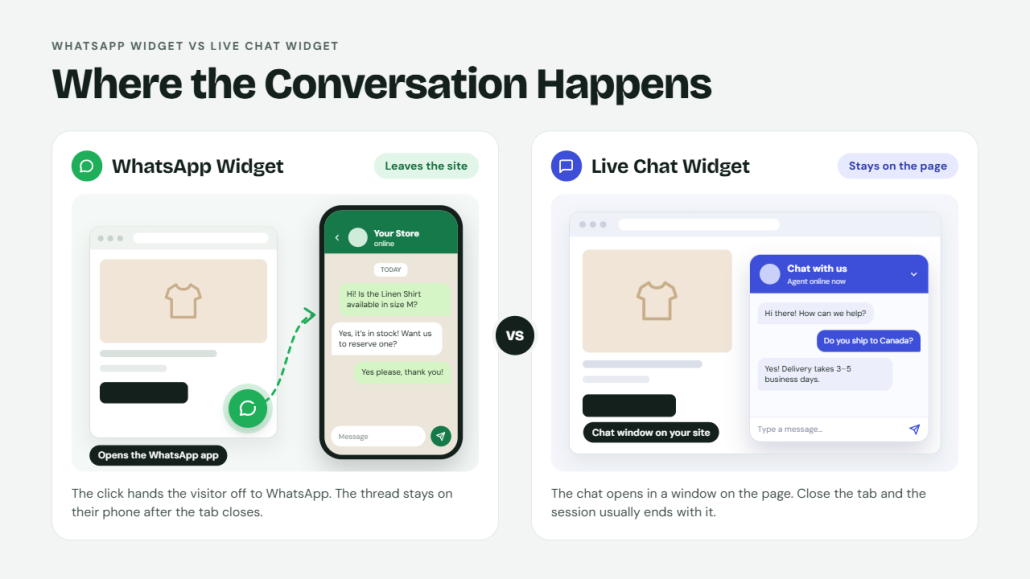
This is the split that decides the channel. A WhatsApp widget does not keep the chat on your site. A live chat widget does. The visitor either leaves the browser for an app, or stays in a window on the page.
WhatsApp Chat
The click opens WhatsApp. On a phone, that is the WhatsApp app. On a computer, it is WhatsApp Web or a QR code. The pre-filled message is already in the thread; the visitor hits send, and the conversation continues in WhatsApp Business.
Nothing stays in an on-site chat box. When they close the tab, the thread is still on their phone. A button from WP WhatsApp starts that handoff. It does not host the chat on your WordPress site.
Live Chat
The chat window opens on the page. The visitor types, a chatbot or a live agent replies, and the session stays in the browser. They do not install an app or scan a code. The agent works from a dashboard, not from a personal WhatsApp account.
If the visitor closes the tab, the window closes with it. Some tools email a copy. The conversation itself does not follow them into an app they already use.
Winner: WhatsApp if the chat should leave the site. Live chat if it should stay on the page.
Setup and Cost
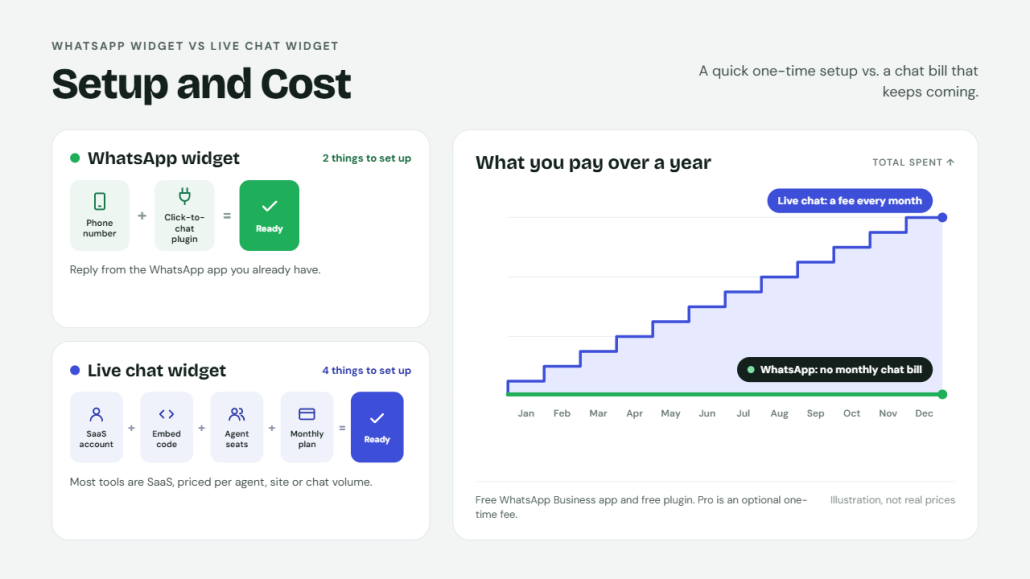
Setup cost is usually the first filter. A WhatsApp widget needs a phone number and a plugin. A live chat widget requires an account, an embed code, and, in most cases, a monthly fee. The cheaper option is not always the better one, but the gap is large for a small store.
WhatsApp Chat
You need a WhatsApp number, ideally on the free WhatsApp Business app, and a button on the site. The free WP Chat App plugin adds the floating button, a greeting, and a pre-filled message. WP WhatsApp Pro is a one-time fee and adds working hours, avatars, and click tracking.
There is no per-agent seat. You reply from the WhatsApp app you already have. Setup is a phone number, the pages to show the button, and the first message. No monthly chat bill.
Live Chat
Most live chat widgets are SaaS tools. You create an account, paste a snippet, and pay per agent, per site, or per chat volume. Free plans exist, but they usually cap the number of agents or history, or remove branding.
A chatbot, canned replies, and a shared inbox are often on the paid tier. The setup is still simple. The cost continues every month, even in a slow week. If you only need a button that opens a chat, the seat fee is hard to justify.
Winner: WhatsApp on cost. Live chat only if the on-page window is worth the monthly fee.
Response Time and After Hours
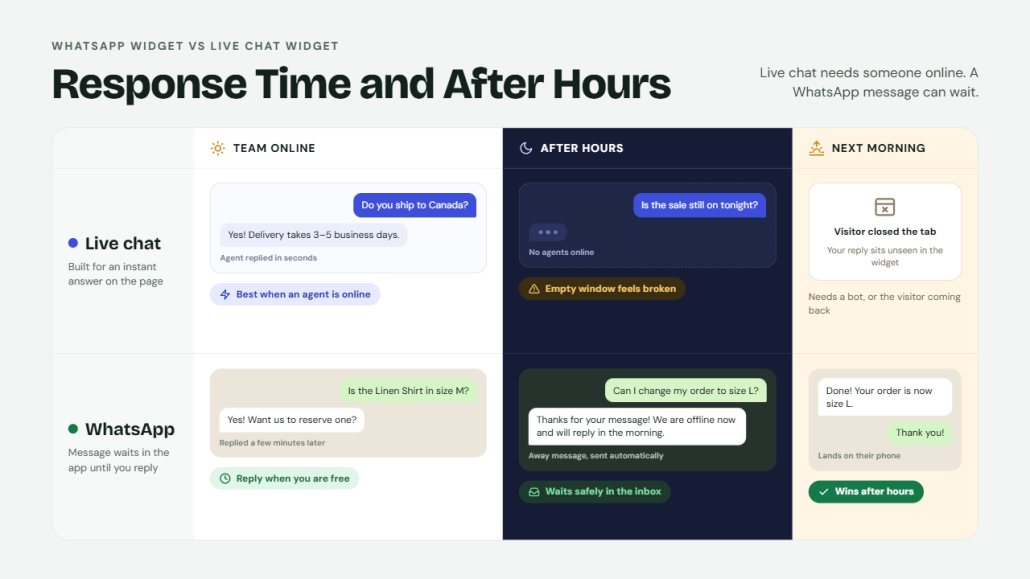
Response time is the real difference between the two channels. Live chat sets an expectation of an instant reply. WhatsApp sets an expectation of a reply when you are free. After hours, that gap gets wider.
WhatsApp Chat
A WhatsApp message can wait. The visitor sends it and goes on with their day. You reply from the WhatsApp Business app when you are back, and the answer lands in a thread they already check.
Away messages and quick replies cover the gap with a short note, such as your hours or a link to the order page. You do not need an agent online at the moment of the click. A pre-filled message from WP WhatsApp can also let them know when you will reply, so the wait does not feel like you are ignoring them.
Live Chat
Live chat widgets are built for a fast answer. If an agent is online, the visitor gets help before they leave the page. If no one is there, an empty chat window feels broken. A chatbot can cover hours, shipping, and simple FAQs, then hand off to a person when a person is back.
Without that bot, after-hours live chat mostly collects a message the visitor may never see a reply to. The channel works best when your team is actually watching the dashboard.
Winner: Live chat when someone is online. WhatsApp after hours, and any time a reply within a few minutes is enough.
Chat History and the Next Reply
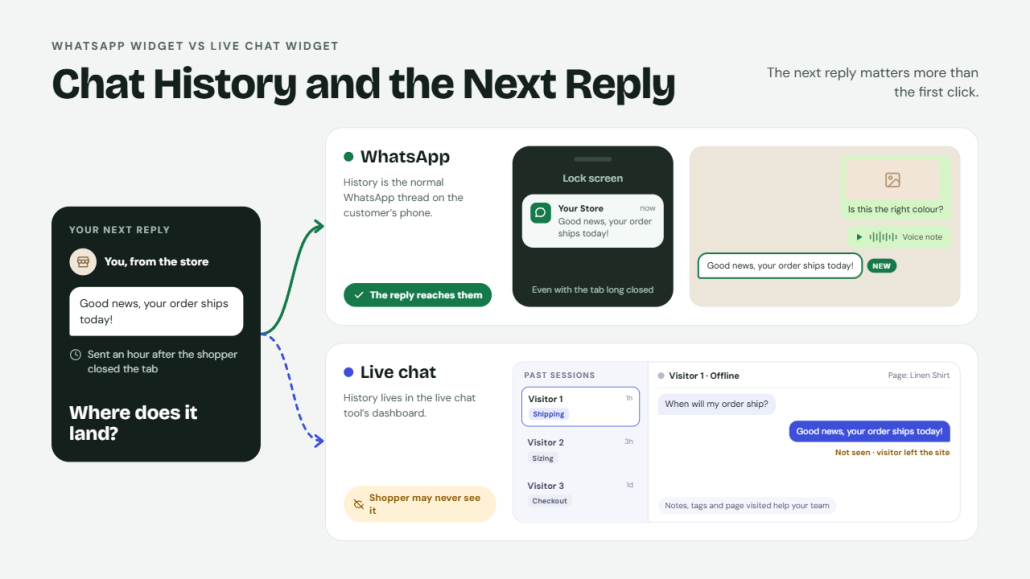
The next reply matters more than the first click. A shopper who asks a question and leaves needs a place to see your answer. WhatsApp keeps that thread in the app. A live chat widget keeps it in a dashboard the visitor may never reopen.
WhatsApp Chat
The WhatsApp thread stays on the visitor’s phone. You reply in WhatsApp Business, and the message appears in the same chat, even if they closed the tab an hour ago. They can send a photo, a voice note, or an order number without returning to the site.
History is the normal WhatsApp conversation, so nothing is trapped in a widget. The limit is your phone or the shared WhatsApp inbox. A click-to-chat button from WP WhatsApp starts that thread. It does not store a separate chat log on your WordPress site.
Live Chat
Live chat history lives in the tool’s dashboard. Agents can see past sessions, tags, and the page the visitor was on. That is useful for a team that needs notes and handoff. The visitor side is weaker.
If they close the tab, the next reply often sits unseen until they come back and open the widget again. Some tools email a transcript. Many do not. The chat session is tied to the browser, not to an app the customer checks every day.
Winner: WhatsApp, if the next reply should reach the customer. Live chat, if your team needs the history more than the shopper does.
Mobile vs Desktop
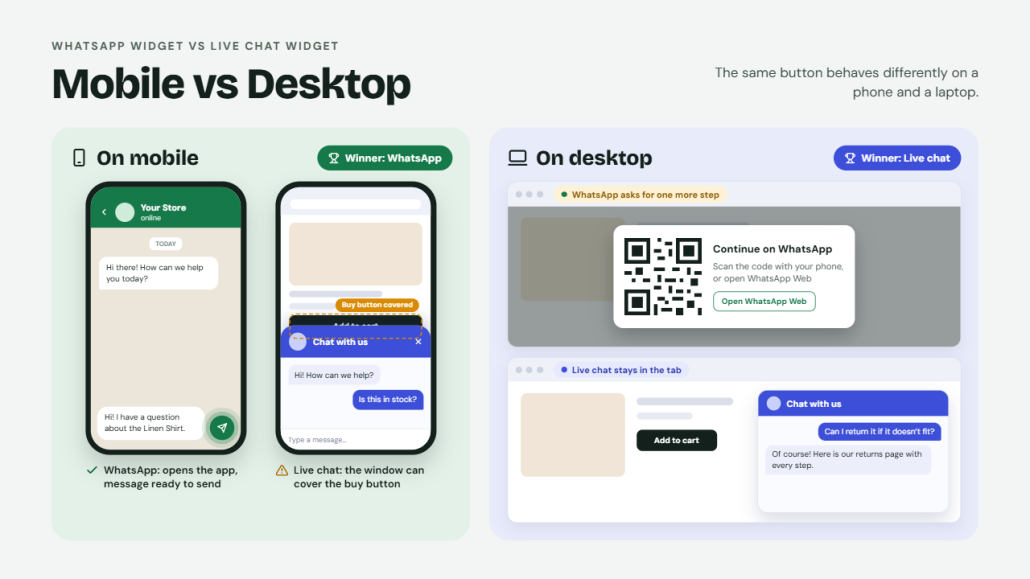
The same button does not behave the same on a phone and a laptop. On mobile, the visitor already has WhatsApp installed and can leave the browser for a minute. On desktop, opening WhatsApp Web or scanning a code adds a step. Test both before you pick a single widget.
WhatsApp Chat
WhatsApp is strongest on a phone. The click-to-chat link opens the app, the pre-filled message is ready, and the visitor sends it without creating an account. That is why a floating button on a product page converts well for mobile shoppers. On desktop, the same link opens WhatsApp Web or asks for a QR code.
Some visitors drop off there. Keep the button clear of the add-to-cart control on small screens. WP WhatsApp works on both platforms, but the smoother path is on mobile, where the app is already open.
Live Chat
A live chat widget stays in the browser, so desktop is often easier. The visitor types in the chat window and never leaves the tab. On a phone, the same window can cover the buy button, the menu, or the coupon field.
A full-screen chat also makes the page feel stuck. If you use on-site chat on mobile, keep the bubble small and let the visitor close it in one tap. Desktop agents can handle longer replies more comfortably than someone typing on a phone.
Winner: WhatsApp on mobile. Live chat on desktop. If most of your traffic is phones, start with the WhatsApp button.
Automation and Chatbots
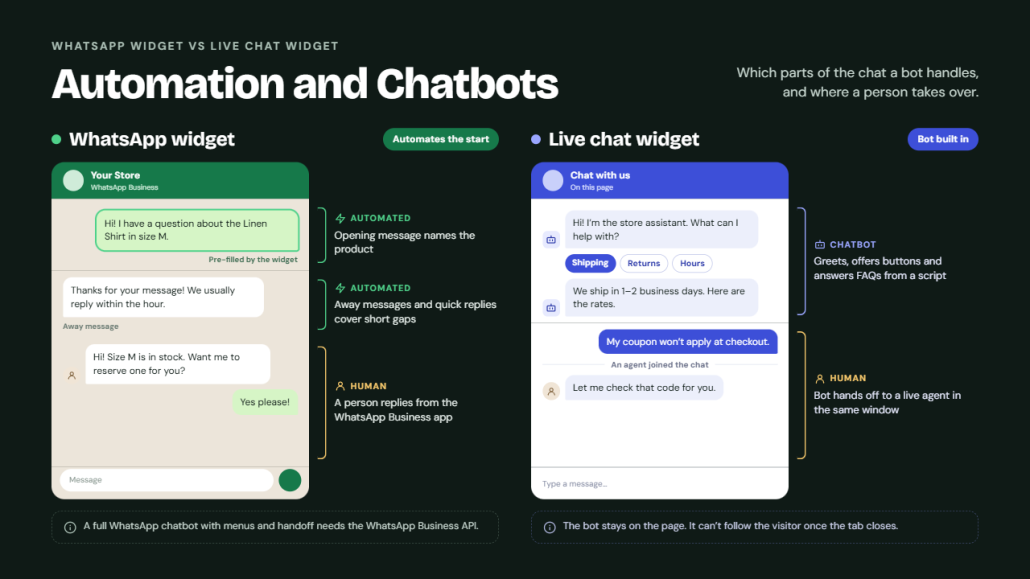
Automation is not the same on both channels. A live chat widget can run a bot inside the on-page window. A WhatsApp widget usually starts with a pre-filled message and a human reply.
A full WhatsApp chatbot needs the WhatsApp Business API or a separate bot tool. Do not treat a click-to-chat button as a scripted agent.
WhatsApp Chat
A basic WhatsApp widget automates the start, not the whole conversation. The visitor clicks the button, WhatsApp opens, and a pre-filled message is already in the thread. That message can name the product, the page, or the order. After that, someone replies in the WhatsApp Business app. Away messages and quick replies in the app cover short gaps.
A real WhatsApp chatbot with menus and handoff requires the Business API and a business solution provider. WP WhatsApp handles the button and the pre-filled text. It does not replace an API bot.
Live Chat
Live chat widgets are built for this. Most include a chatbot that greets the visitor, offers buttons, and answers shipping or hours from a script. If the bot cannot help, it hands the chat to a live agent in the same window.
That flow stays on the site, so it works well for repeated questions during a visit. The limit is the same as the channel. When the visitor closes the tab, the bot cannot follow them into an app they already use.
Winner: Live chat, if you want a bot on the page. WhatsApp, if a pre-filled message and a human reply are enough.
Best Use Cases
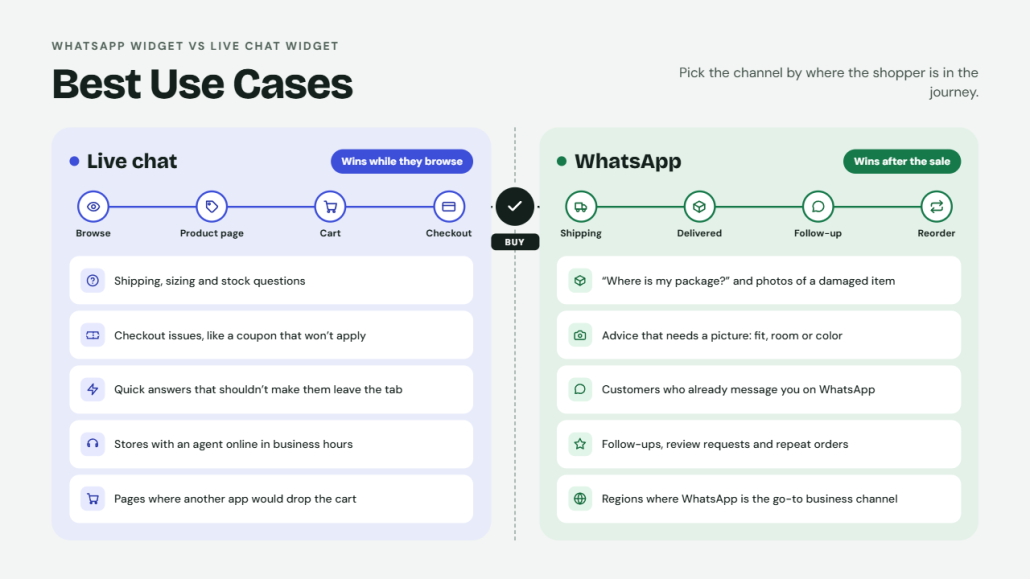
Best use cases depend on where the shopper is in the visit. A WhatsApp chat widget and a live chat widget both start with a click, but the message does not stay in the same place. One continues in an app the visitor already opens. The other stays on the page while they are still deciding.
WhatsApp Chat
- Order questions after checkout, including “where is my package” and a photo of a damaged item.
- Product advice that needs a picture, such as a room, a fit, or a color in real light.
- Customers who already message you on WhatsApp and will not open a site chat again.
- Post-purchase follow-up, review requests, and repeat orders.
- Regions where WhatsApp is the default messaging channel for businesses.
A button from WP WhatsApp covers this without a monthly seat.
Live Chat
- Shipping, sizing, and stock questions while the visitor is still on the product page.
- Checkout problems, such as a coupon that will not apply.
- Short answers that should not make the shopper leave the tab.
- Stores with an agent online during business hours.
- Pages where opening another app would drop the cart.
Winner: Split it. WhatsApp wins after the sale. Live chat wins while the visitor is still browsing.
When to Use Both
Most stores do not need to pick one channel and drop the other. WhatsApp and live chat cover different moments in the same visit. The mistake is that both are running as identical widgets on every page. Use each one where the visitor is most likely to finish the conversation.
WhatsApp Chat
Keep the WhatsApp widget for the steps that continue after the tab closes. Product pages are a good fit when the shopper may want a photo, a size check, or a custom order. Order status, delivery issues, and review requests belong here too.
The thread stays in WhatsApp Business, so the customer does not have to return to the site to reply. One floating button, or a shortcode button on the product page, is enough. WP WhatsApp can sit on those pages without replacing your on-site chat.
Live Chat
Keep live chat for questions that need to be answered before the visitor leaves. Cart and checkout pages are the clearest fit. A coupon error, a shipping rate, or a “is this the right size” question can be handled in the on-page window without opening another app.
Hide the WhatsApp button on those pages if the two bubbles overlap. Live chat is also the better fallback when no one can watch the WhatsApp phone for a few hours.
Winner: Use both, on different pages. WhatsApp after the click to buy. Live chat before it.
Common Mistakes While Using a WhatsApp Chatbot or Live Chatbot
A WhatsApp chatbot and a live chatbot fail for the same reason. The bot, the widget, and the use case do not match. These are the mistakes that waste the chat option.
- Treating WhatsApp click-to-chat like a full chatbot: A WhatsApp widget opens a thread with a pre-filled message. It does not run a scripted bot unless you add one through the WhatsApp Business API or a business solution provider. If the visitor expects instant answers and gets silence, the floating button on your website looks broken.
- Using one inbox for every channel: WhatsApp, website chat, and a Facebook Messenger chat widget are different threads. Dumping WhatsApp and Messenger into a messy handoff loses the message. Keep the path clear. WhatsApp stays in WhatsApp Business. On-site chat stays in the live chat dashboard.
- Showing every widget at once: Two chat bubbles, a Messenger chat widget, and a WhatsApp button fight for the same corner. Pick the channel that fits the page. A product question can use WhatsApp. A checkout question can use live chat. Extra widgets on your website do not raise conversion rates.
- Sending the wrong pre-filled message: “Hi” wastes the click. The snippet should name the page, the product, or the order. On an eCommerce product page, include the product title so the agent knows what the visitor was looking at.
- Leaving the bot in charge of a sale: Chatbot vs human matters at checkout. A bot can share shipping hours or a tracking link. A payment problem, a wrong size, or an angry order needs a person. Automation that cannot hand off will drop the conversation from your website.
- Ignoring desktop and mobile: A widget that covers the add-to-cart button on a phone gets closed. Test the CTA on both. WhatsApp suits a tap that opens the app. Live chat suits a short on-page question. Meta’s active users do not help if the button blocks the page.
Here are some similar articles you might find useful:
- 5 Smart Ways to Use a Notification Bar That Aren’t Just “Sale Ends Soon”
- WhatsApp vs Live Chat Widget: Which Chat Tool Is Best?
- 10 WordPress Notification Bar Examples That Actually Drive Sales
- 5 Reasons Multi-Step Forms Convert Better Than Long Single-Page Forms
- How to Edit Code Files Directly From Your WordPress Dashboard With Filester
Frequently Asked Questions
Now, let’s take a look at some frequently asked questions and answers on this topic.
A WhatsApp widget fits when the conversation should continue after the visitor leaves the page. Order questions, product photos, and support that can wait a short while all work better in a WhatsApp thread than in an on-site window. The visitor already has the app, and the message stays in WhatsApp Business. A short browsing question, such as “is this in stock right now,” is a weaker use case, because the shopper may not want to leave the product page.
Website chat wins when the visitor is still deciding, and the answer is short. Shipping rules, sizing, and a checkout problem can be handled in the chat widget without opening another app. Live chat widgets keep the session on the page, so the shopper does not lose their cart. If your team is online during store hours and can respond within a minute, on-site chat is the better channel.
Use both if the store can staff them. WhatsApp vs live chat is not a single winner. Live chat suits the visit. WhatsApp suits customers who come back later. Many WooCommerce stores add a live chat widget to the cart and a WhatsApp button to product pages. If you can only run one, pick the channel your buyers already reply to. In many regions, that is WhatsApp.
No. A basic WhatsApp click-to-chat widget only needs a phone number. It opens the WhatsApp app or WhatsApp Web with a pre-filled message. The WhatsApp Business API is for automated replies, templates, and a shared team inbox at scale. A small store can start with the free WhatsApp Business app and a button. Add the API later if the volume outgrows one phone.
A chatbot and a WhatsApp widget do different jobs. Chatbot vs human is about who answers. The widget is about where the chat happens. A WhatsApp chatbot can greet the visitor, collect the order number, and then hand off to a person. It cannot replace the button if your goal is a real WhatsApp thread. On-site, a bot can cover hours when no agent is online. Do not let the bot handle refunds or payment failures.
Only if your buyers already message you there. Facebook or Instagram can sit alongside WhatsApp as another touchpoint, but a second messenger chat widget competes for the same corner. Two bubbles slow the page and confuse the visitor. If you add Messenger, use a clear chat option and do not stack it on top of the WhatsApp button. One primary widget is enough for most stores.
One chat widget is enough on a product page. A floating button, a messenger chat widget, and a live chat bubble in the same corner fight for space, obscuring the add-to-cart button on a phone. Pick the channel that fits that page. You can embed a WhatsApp button inside a post with a shortcode without adding a second floating icon. Extra widgets rarely help conversion.
Yes. That is where WhatsApp wins over a traditional live chat widget. The thread stays in the app the customer already opens. You can send a shipping update, ask for a photo review, or answer a “where is my order” message without making them return to the site. A website chat session usually ends when the tab closes. WhatsApp keeps the contact.
No. Click-to-chat sends the visitor into WhatsApp. A live chat SaaS tool keeps the conversation in a dashboard on your site, with agent seats and chat history. You do not pay per seat for a simple WhatsApp button. You do give up the on-page window. WP WhatsApp is the click-to-chat type. It adds the button, the greeting, and the pre-filled message. It does not replace a full live chat platform.
Yes. Use live chat for questions during the visit and a WhatsApp widget for the customers who prefer the app. Keep one floating button visible at a time, or place the WhatsApp button on product pages and the live chat widget on the cart. The free WP Chat App plugin can add the WhatsApp side without a second SaaS bill. Set the pages, write the first message, and leave the other channel for the use case it handles better.
Conclusion
Pick the channel that matches the visit. Live chat is best for short questions while the shopper is still on the page, such as shipping questions or checkout issues.
WhatsApp suits the conversation that should continue after the tab closes. Order questions, product photos, and support that can wait an hour all fit better in a WhatsApp thread than in an on-site window. Some stores use both.
One widget for browsing, one button for customers who already use WhatsApp. If WhatsApp is the channel you want, start with the button rather than a full chatbot. WP WhatsApp adds a floating button, a greeting, and a pre-filled message on WordPress.
The free version, WP Chat App, covers the basic widget and an Order on WhatsApp button for WooCommerce products. Pro adds working hours, avatars, and click tracking. Set the pages, write the first message, and send the visitor into a real WhatsApp chat.
So which one are you going to choose?
Let us know in the comments.