
Do you want to edit code files directly from your WordPress dashboard? In this post, we will show you how to use the Filester plugin to eliminate the need for third-party platforms like FileZilla when editing core files.
Editing WordPress files usually means opening an FTP connection, finding the right folder, and then uploading the file again. Filester cuts that extra step.
It adds a File Manager screen to your WordPress dashboard, allowing you to open theme, plugin, and site config files and edit them in a built-in code editor.
You can also upload, download, copy, and organize folders without leaving the admin area. This guide shows you how to install Filester, open a file, make a safe edit, and save the change from the dashboard.
First, let’s see what Filester is and what it does.
What is Filester and What Does it Do
Filester is a WordPress file manager plugin that lets you work with server files from the dashboard. After you install it, a File Manager menu appears in the admin sidebar.
From that screen, you can browse the WordPress directory, open folders, and handle files the same way you would in an FTP client. The plugin is built for site files, not only media library items. You can view theme templates, plugin files, and configuration files such as .htaccess or wp-config.php.
Filester also includes a built-in code editor, so you can open a file, edit the code, and save it without downloading it first. Beyond editing, Filester covers everyday file tasks. You can upload and download files, create folders, rename items, copy or move files, duplicate them, preview content, and create or extract archives.
A drag-and-drop interface and a right-click menu keep those actions close at hand. Filester is useful when you need a quick theme tweak, a plugin file change, or a config edit and you do not want to leave WordPress to do it.
Why Edit WordPress Files From the Dashboard
Dashboard editing saves time when the change is small. You stay logged into WordPress, open the file, edit the code, and save. There is no extra app, no FTP login, and no download-then-upload loop for a one-line fix. This is handy for theme template tweaks, plugin file checks, .htaccess edits, and quick config reviews.
If you manage several sites, a file manager in WordPress also helps when you do not have the FTP details at hand. The other benefit is context. You can look at the live site, open File Manager, change a file, then refresh the page. That makes small CSS, PHP, or layout fixes easier to test. It is still a powerful tool.
A bad edit can break a theme or take the site down, so dashboard access is not a reason to skip backups. Use Filester for controlled edits, keep a copy of the original file, and avoid changing core WordPress files unless you know exactly why you need to.
How to Edit Code Files Directly From Your WordPress Dashboard
The first thing we will do is install and activate the Filester plugin on the website. Since this is a free plugin, you can directly install it from the WordPress plugins repository.
So go to the Add New Plugins section, find the plugin, and install it.
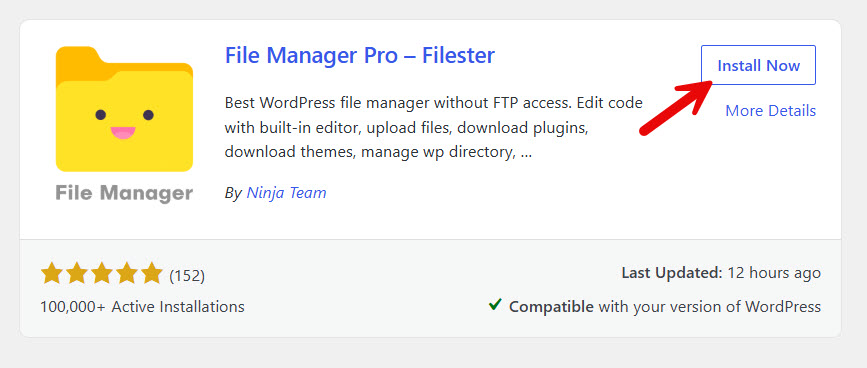
Once you have installed it, you need to activate it.
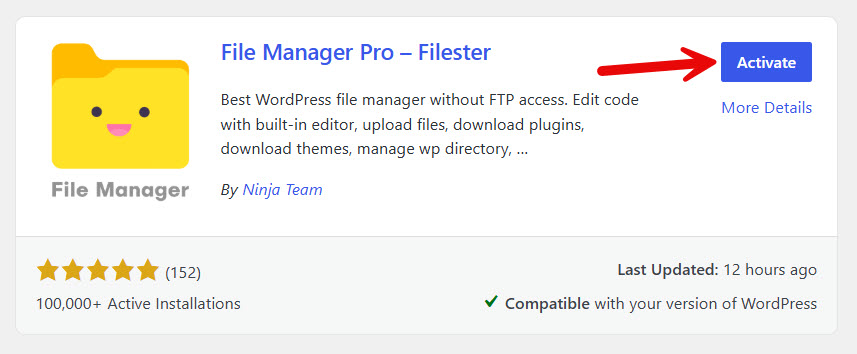
After activating the plugin, you can see the settings on the left-hand side.
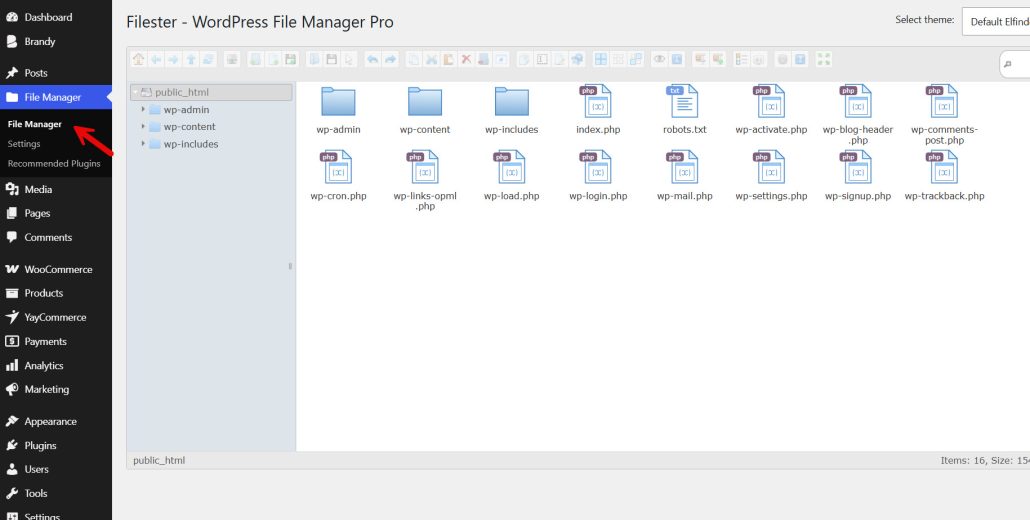
As you can see, it will open the file manager. If you need to control who can access the plugin, enable trash, and so on, open the settings page.
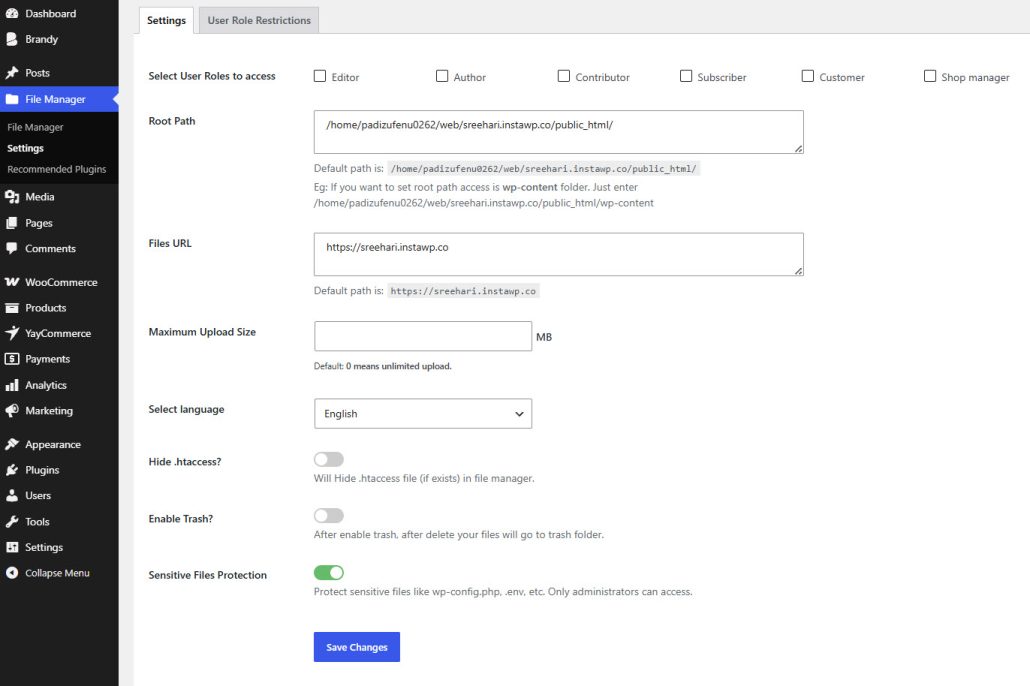
Once you have tweaked the plugin to your liking, it is time to edit the core files directly via the WordPress dashboard. Here, we will edit the robots.txt file.
To ensure the editing process goes smoothly and the file isn’t corrupted, it is recommended to download a copy of the original file before editing. This way, if the file gets corrupted after editing, you can remove it and replace it with the original one.
Downloading the file is simple. You can right-click and choose the download option.
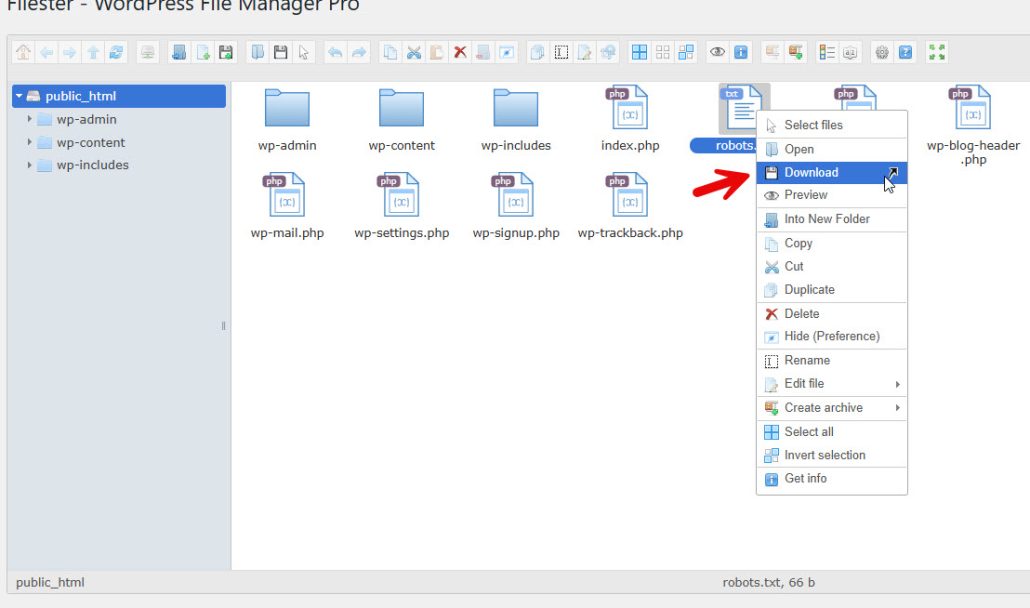
Once you have downloaded the file, choose the edit option.
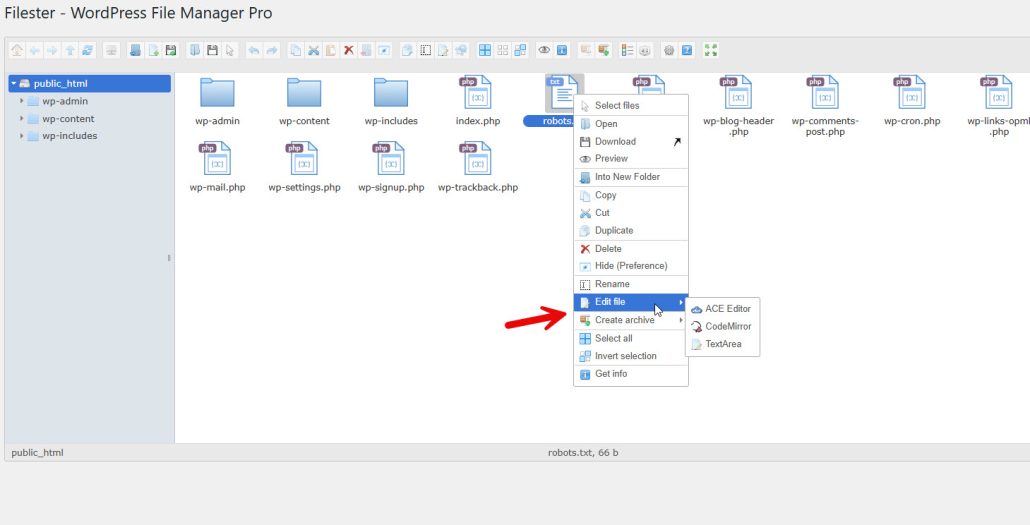
As you can see in the image, there are three editors:
- ACE Editor
- CodeMirror
- TextArea
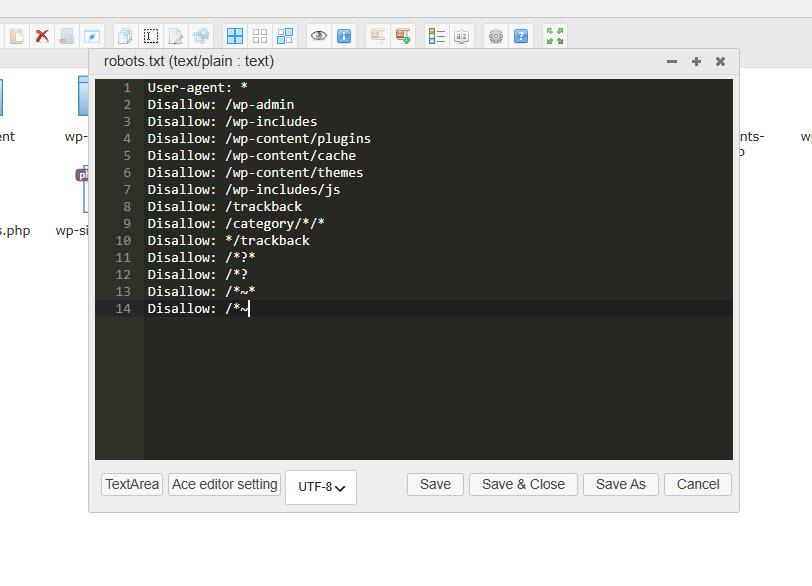
Each one serves the same purpose – editing the code, but the interface changes. Let’s see what each editor looks like:
ACE Editor
CodeMirror
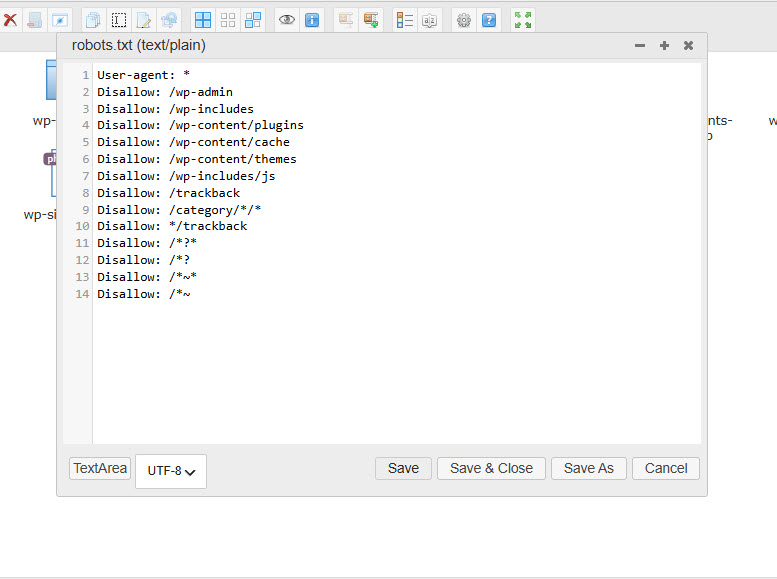
TextArea
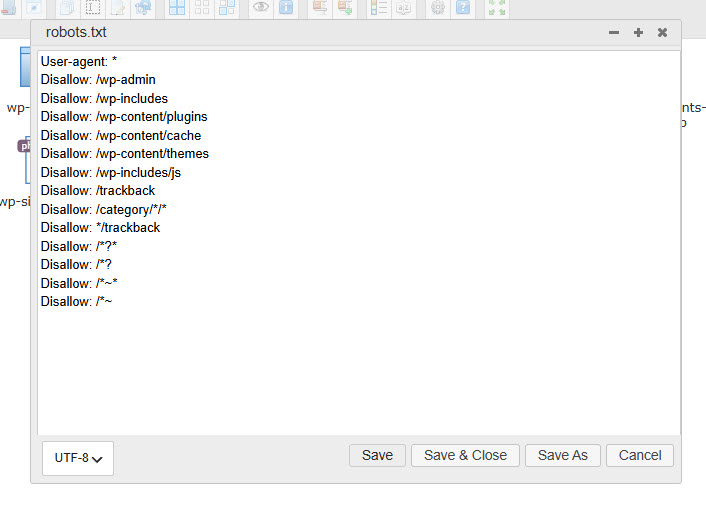
From the list, we will choose ACE Editor. Now you can modify the content. Once you are done with the modification, save the file.
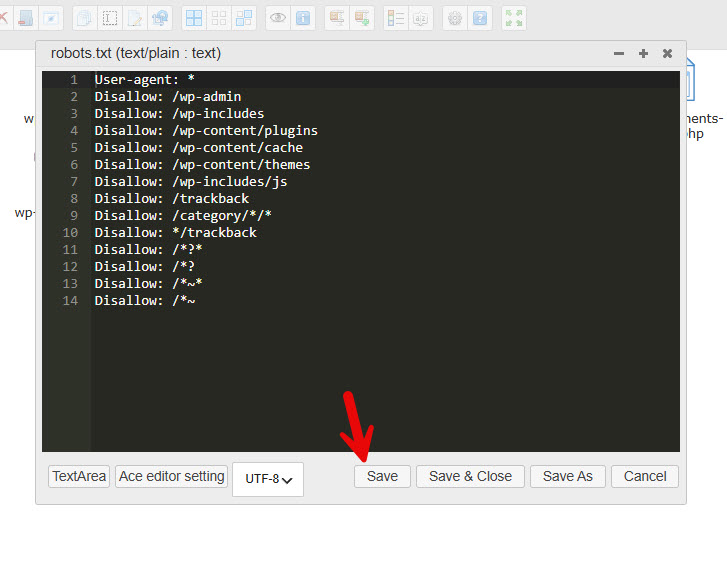
That’s it! This way, you do not need to use any third-party software such as FileZilla and still can edit the core files. Robots.txt was an example. You can edit PHP files,
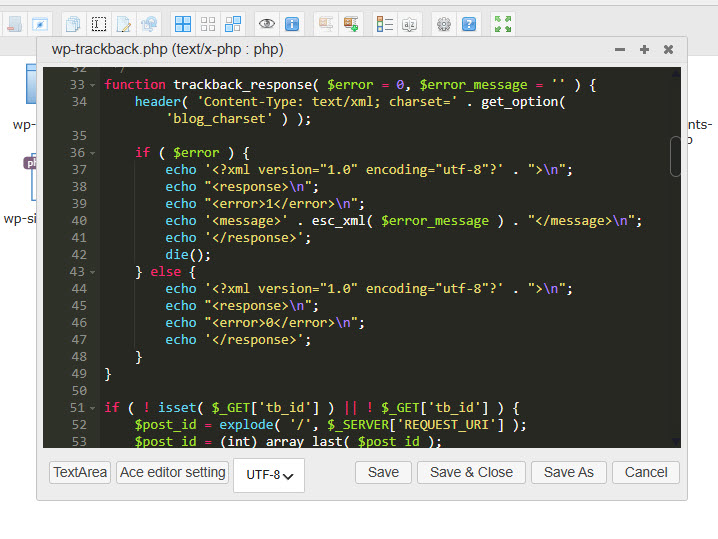
CSS files,
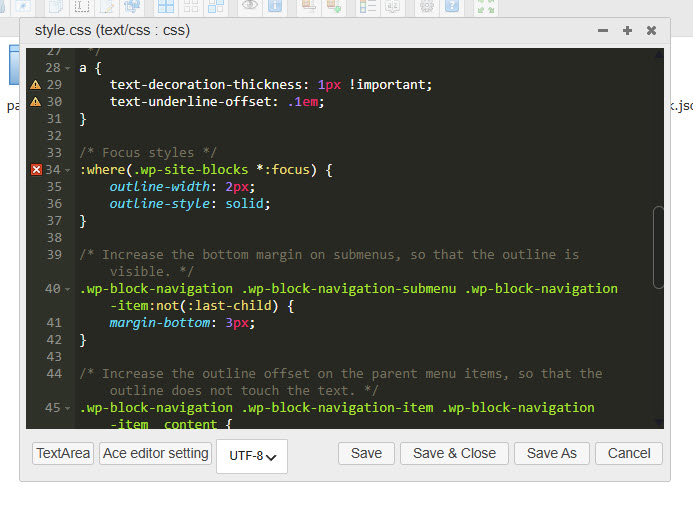
and more…
This is how you can edit code files directly from your WordPress dashboard. As you can see in this tutorial, it is pretty simple with a plugin like Filester.
So what are you waiting for…
Common Mistakes You Should Avoid While Editing Files Using Filester
Filester makes file edits fast, and that is where people slip. A quick change in the dashboard can break a theme, lock you out of the site, or overwrite a file you cannot easily restore. Watch for these mistakes before you open the editor.
- Editing without a backup: Always copy the file or download it first. If the edit fails, you need a clean version to put back. Filester can duplicate a file in a few clicks, so use that before you change live code.
- Changing core WordPress files: They are replaced during updates. Edits there disappear or cause conflicts. Change a child theme, a custom plugin file, or a snippet instead of editing WordPress core.
- Saving broken PHP: A missing bracket or extra character can take the site down. Edit one small section at a time, save, then check the front end. If the site errors, restore the backup file right away.
- Giving every user file access: File Manager can reach config files and theme folders. Limit the plugin to trusted admin roles. Extra access is a security risk, not a convenience feature.
- Editing .htaccess or wp-config.php without a plan: These files control permalinks, memory limits, and site security. One wrong line can make the site unreachable. Keep a local copy and change only the setting you need.
- Skipping a test after you save: Opening the editor is not the last step. Refresh the page, test the feature you changed, and confirm the site still loads. A file that “saved” can still contain an error visitors will see first.
Here are some related articles you will find useful:
- 5 Smart Ways to Use a Notification Bar That Aren’t Just “Sale Ends Soon”
- WhatsApp vs Live Chat Widget: Which Chat Tool Is Best?
- 10 WordPress Notification Bar Examples That Actually Drive Sales
- 5 Reasons Multi-Step Forms Convert Better Than Long Single-Page Forms
- How to Edit Code Files Directly From Your WordPress Dashboard With Filester
Frequently Asked Questions
Now, let’s take a look at some frequently asked questions and answers on the topic.
Yes. Filester adds a File Manager screen to the WordPress dashboard. From there you can open theme files, plugin files, and config files, then edit them in the built-in code editor. You can also upload, download, copy, and organize files without an FTP client.
It is safe if you treat it like any other file editor. Back up the file first, edit one change at a time, and restore the copy if the site breaks. The risk comes from the edit itself, not from opening the file. Limit File Manager access to trusted admins.
You can browse the WordPress directory and open most site files. That includes theme templates, plugin PHP files, CSS, JavaScript, .htaccess, and wp-config.php. Use extra care with config files, because a bad line can take the site offline.
No. The media library is for uploaded images and documents. Filester is for server files and folders, including theme, plugin, and configuration files. You can still preview or move media files in File Manager, but the two tools serve different purposes.
The fastest fix is to restore the backup you made before editing. If you duplicated the file in Filester, replace the broken file with that copy. If you have a full site backup, restore that file from the backup. Do not keep trying random edits after the site is down.
Yes. You can upload archives and extract them from File Manager. This helps when you need to drop a theme folder, plugin folder, or patched file onto the server. After you extract the files, confirm they landed in the correct directory.
Avoid it when you can. Parent theme updates overwrite those files. Use a child theme, a custom CSS option, or a small custom plugin for lasting changes. If you must edit a parent theme file, keep a backup and expect to repeat the edit after an update.
They can if their role is allowed to open the File Manager menu. That is a problem on sites with editors, shop managers, or extra admins. Restrict access so only people who should touch server files can open Filester.
Refresh the front end and test the page or feature you changed. Look for a white screen, a plugin error, or a layout break. If something is wrong, restore the original file first, then review the edit on a copy instead of guessing on the live file.
No. Developers use it for faster code edits, but site owners also use it to replace a file, extract a zip, check a theme template, or fix a small CSS issue. The built-in editor helps with code, and the file tools help with everyday server tasks that used to need FTP.
Conclusion
Editing WordPress files from the dashboard is useful when the change is small and you do not want to open FTP for every tweak. Filester puts that workflow in the admin area. You can browse the site directory, open a theme or plugin file, edit the code, upload a replacement, or extract an archive without leaving WordPress.
The built-in editor is the main reason to use it. Instead of downloading a file, editing it on your computer, and uploading it again, you open the file, make the change, and save.
That helps with template edits, CSS fixes, plugin file checks, and quick config reviews. The same screen also covers copy, move, rename, preview, and download tasks that previously required a separate file client. Speed is not a reason to skip caution.
Duplicate the file before you edit it. Stay away from WordPress core files. Be careful with .htaccess and wp-config.php. After you save, refresh the front end and confirm the page still works.
If the site errors, restore the backup file first. Filester works best as a controlled file tool, not as a place to experiment on live code. Install it if you want a WordPress file manager for everyday edits, keep backups close, and use the dashboard editor for changes you can test right away.
Would you still use an FTP client to edit the files?
Let us know in the comments.

